Building a software baseline
Totem’s Inventory module helps you keep a catalog of your software assets, also known as your software baseline. This guide walks you through creating a software baseline in Totem.
To add new software assets to your inventory:
- Log in to Totem.
- Navigate to the Inventory module. Select the Software Baseline page.
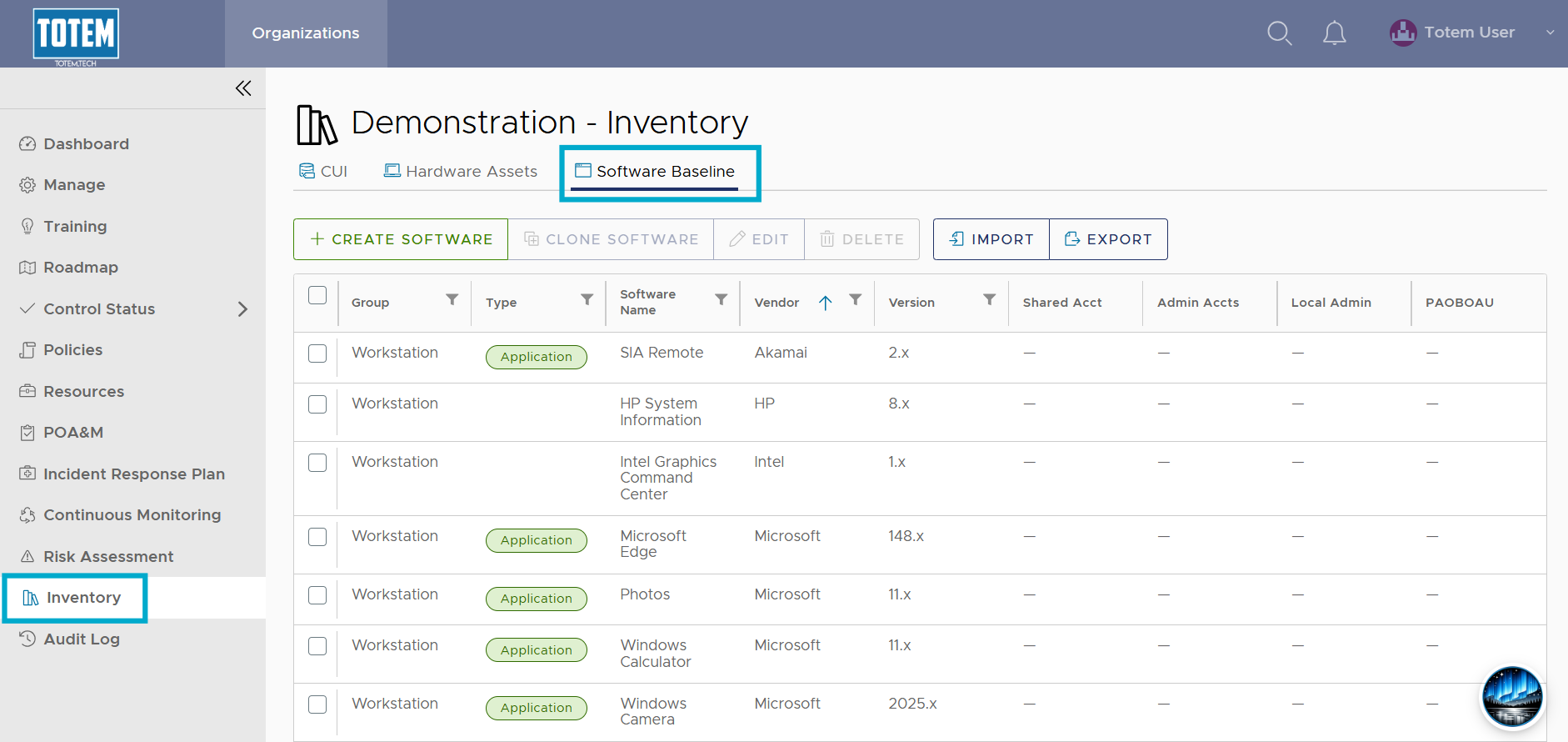
- Select Create Software. This will bring up the software asset inventory workflow.
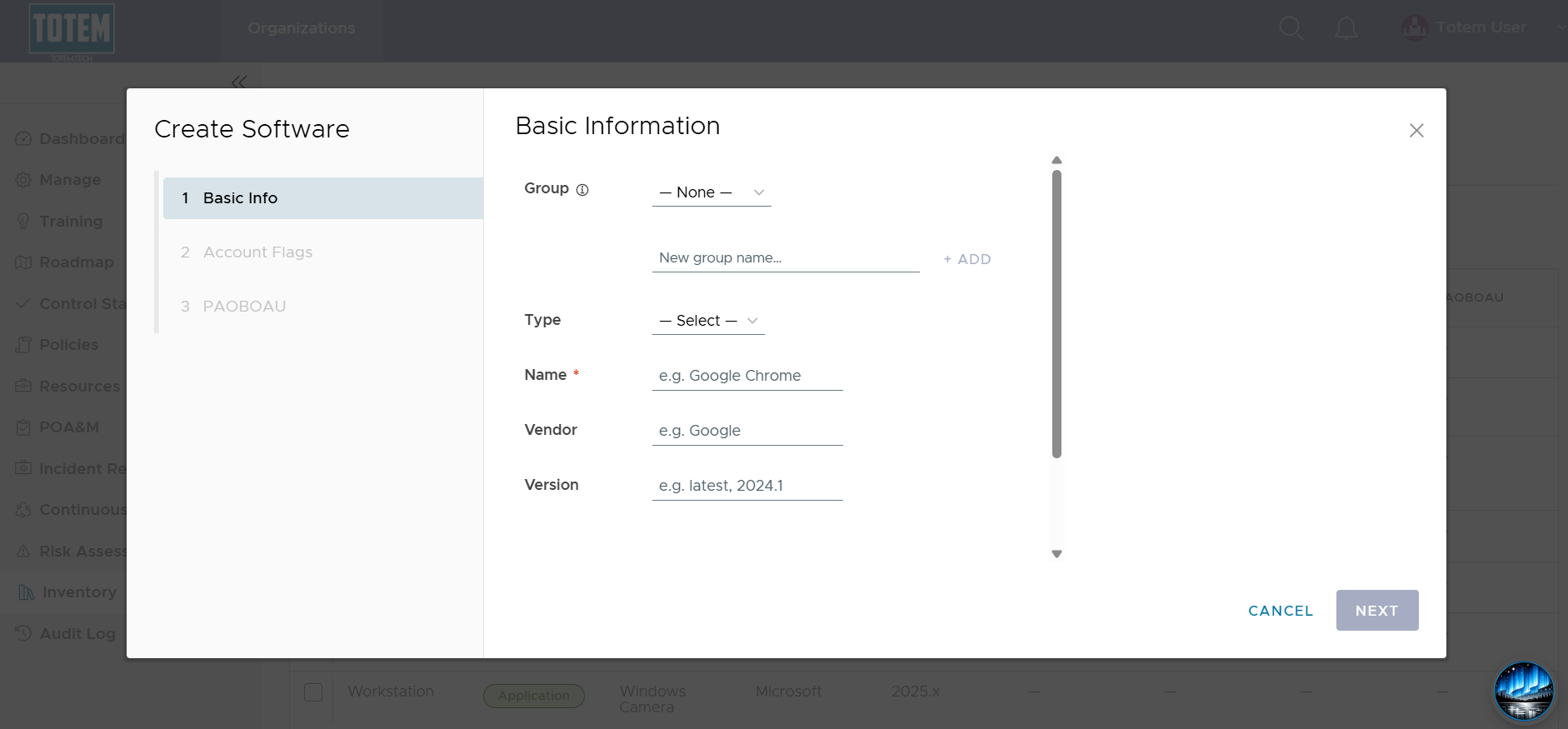
- Populate the software asset details. The below guidance clarifies certain fields across the asset inventorying process that can be confusing:
- Group: In many cases, organizations will have different software installed on different machines. You can specify a Group (e.g., workstations, servers, CUI workstations, etc.) that is relevant for the listed software. Select an existing group or define a new one.
- Type: Is the software an operating system (OS — e.g., Windows 11), a system application (e.g., drivers or necessary Windows programs), or a standalone application that can be uninstalled (e.g., Microsoft Word)?
- Account Flags:
- Shared Group Account: The software requires shared credentials to use; in other words, it is not tied to any specific account.
- Admin Accounts: The software requires administrative privileges to use.
- Local Admin Accounts: The software requires local admin (e.g., admin rights on a single specific computer/device) to use.
- PAOBOAU: The software is considered a process acting on behalf of an authorized user, such as that it requires a unique user-level set of credentials to operate. Select Yes if it is a PAOBOAU.
- When finished populating all desired fields, select Create Software. Your new software asset will appear in the list.
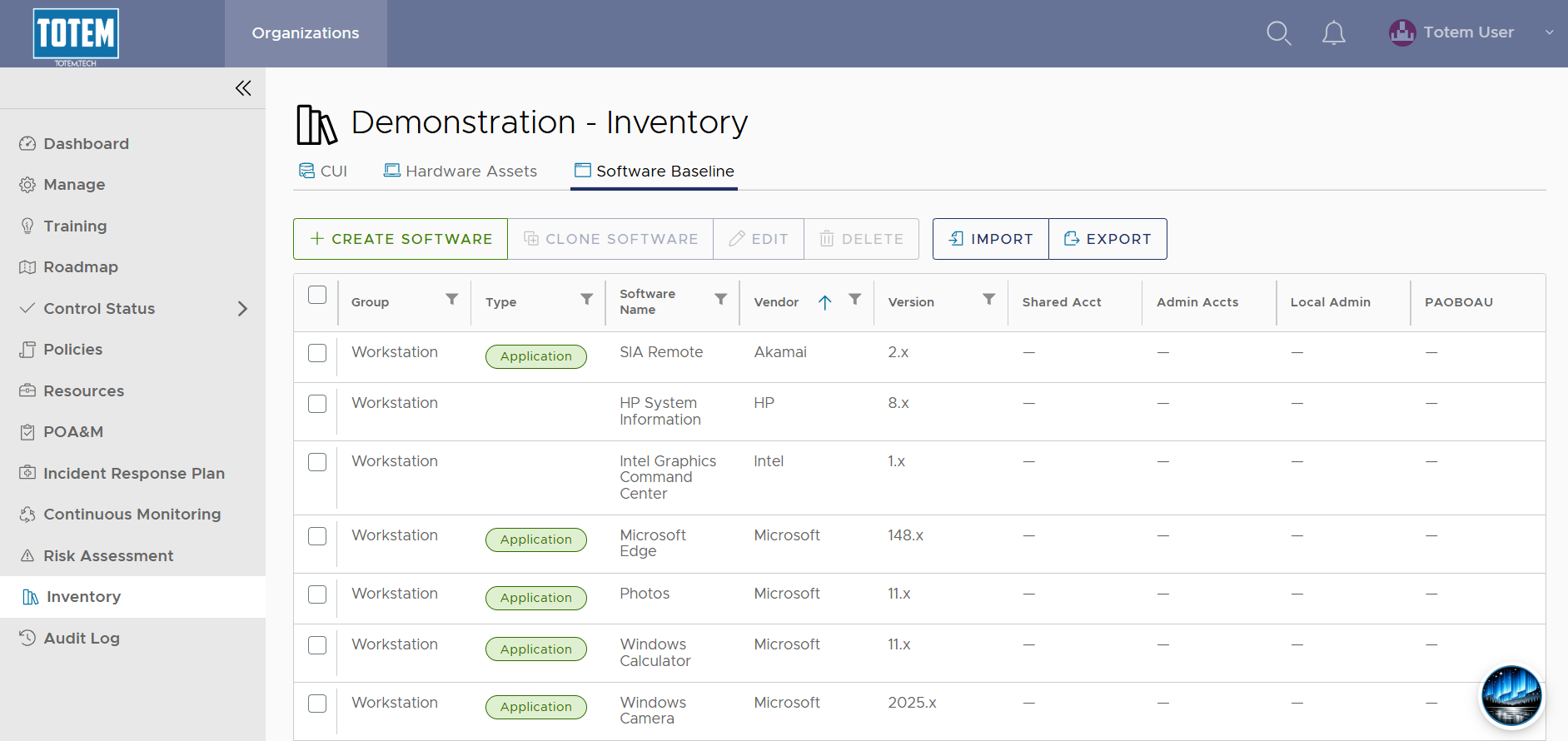
- Repeat for any additional software assets you’d like to create. Alternatively, you can clone an existing software asset or import an existing software asset spreadsheet to save yourself time.