Building a POA&M
In Totem, your POA&M is the sum total of all of your Corrective Action Plans (CAP), where a CAP outlines a specific deficiency and your organization’s plan to correct it. Users build and manage individual CAPs, which appear on your POA&M. This guide walks you through what to know when building and managing Corrective Action Plans.
Totem Tech recommends you wait to build your POA&M until you’ve conducted a full self-assessment via the Control Status module. In other words, hold off on creating your POA&M until you know which Controls/Organization Actions are Not Met, as all Not Met actions should be found on at least one CAP.
Creating Corrective Action Plans
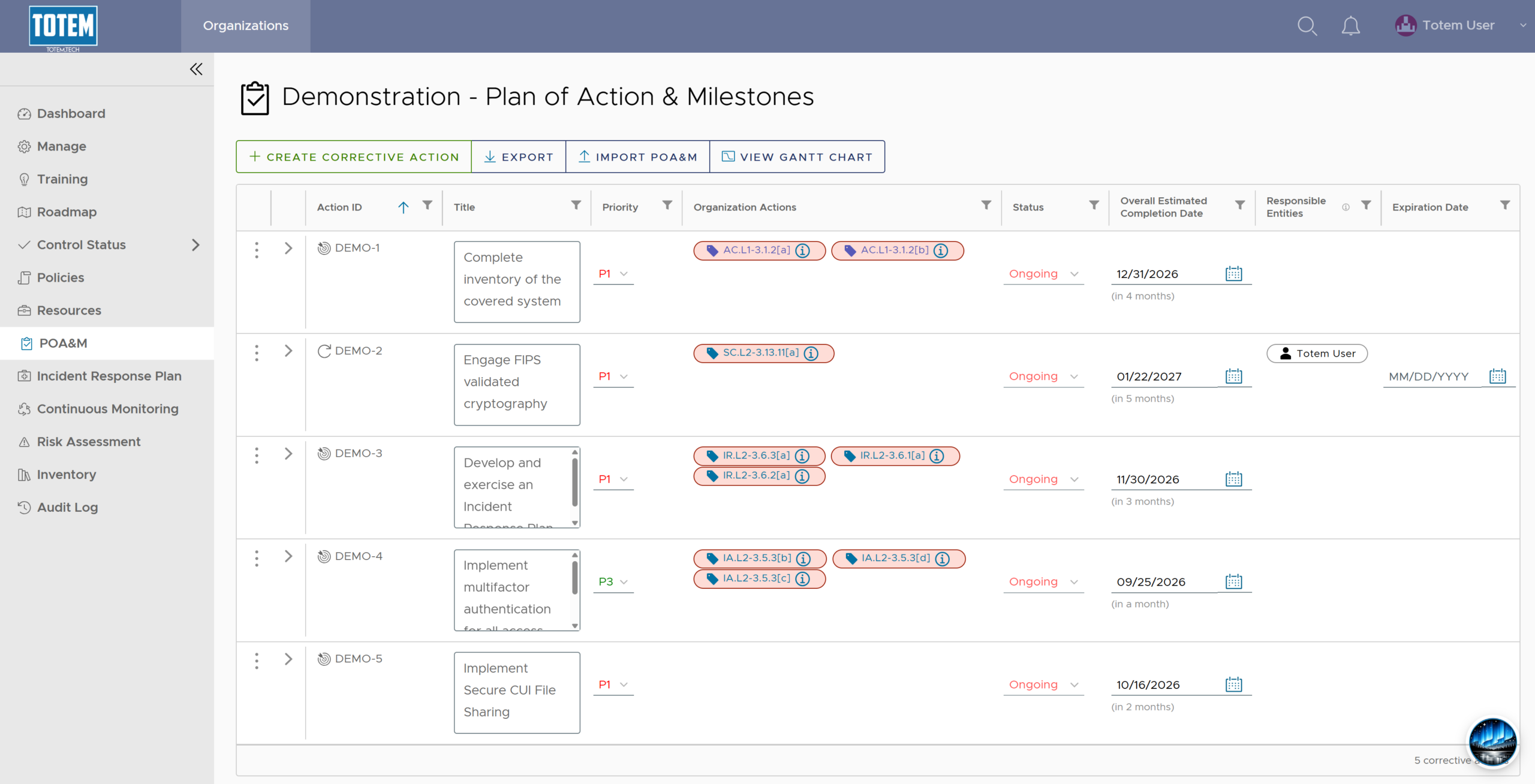
- There are a couple ways in which you can build a Corrective Action Plan. First is directly through the POA&M module, via the Create Corrective Action button:
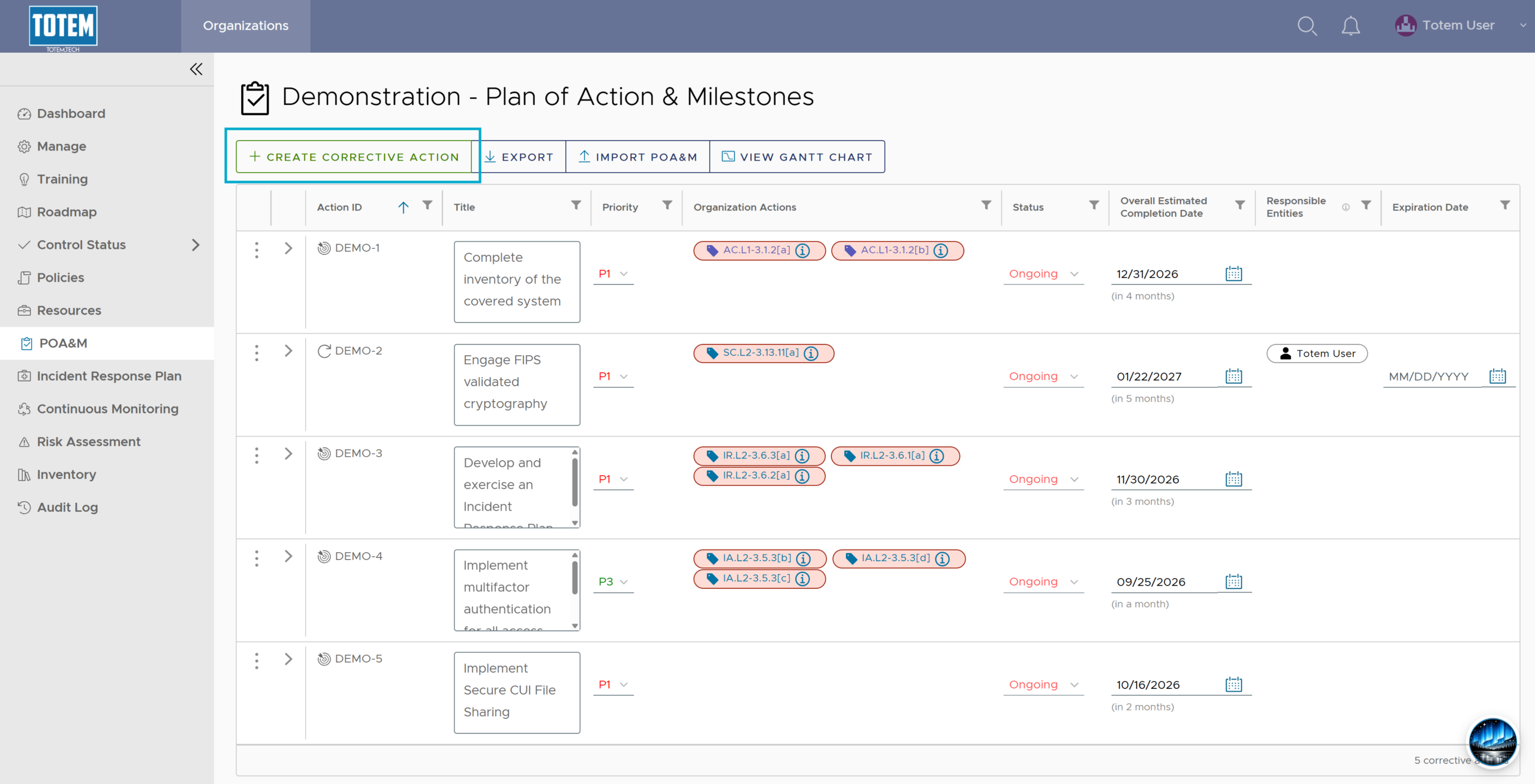
- Selecting this button will bring you to the Create Corrective Action page:
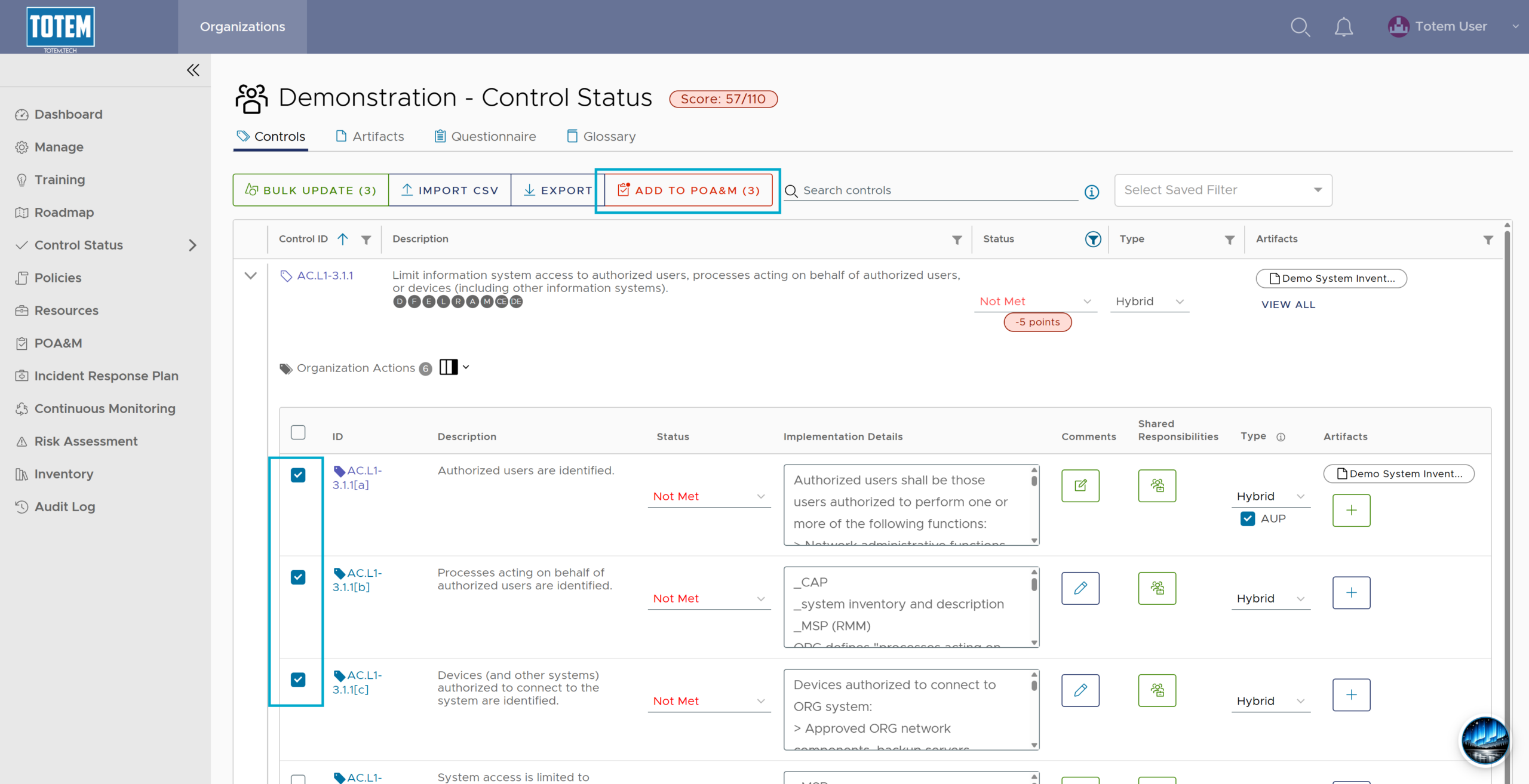
- Alternatively, you can get to the Create Corrective Action page via the Control Status module. When you’ve identified Organization Actions that you’d like to add to a CAP, you can select the checkbox next to those actions, and an Add to POA&M button will appear at the top:
- Selecting Add to POA&M will bring you to the same Create Corrective Action form as before, only this time each Organization Action you selected in Control Status will appear in the actions list:
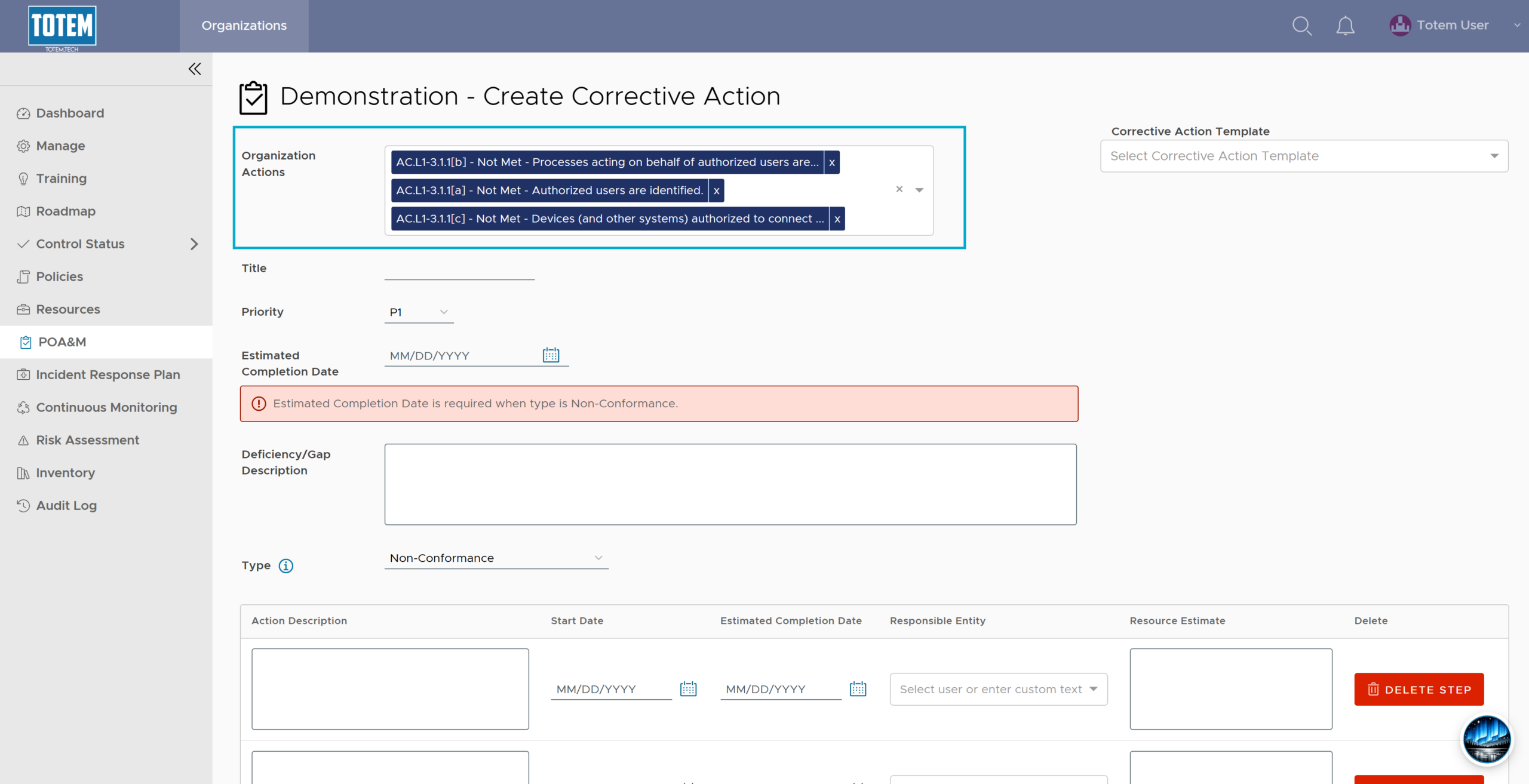
- In either case, if you want to add more Organization Actions to your CAP, you can select more from the list. A single CAP can contain up to 30 actions.
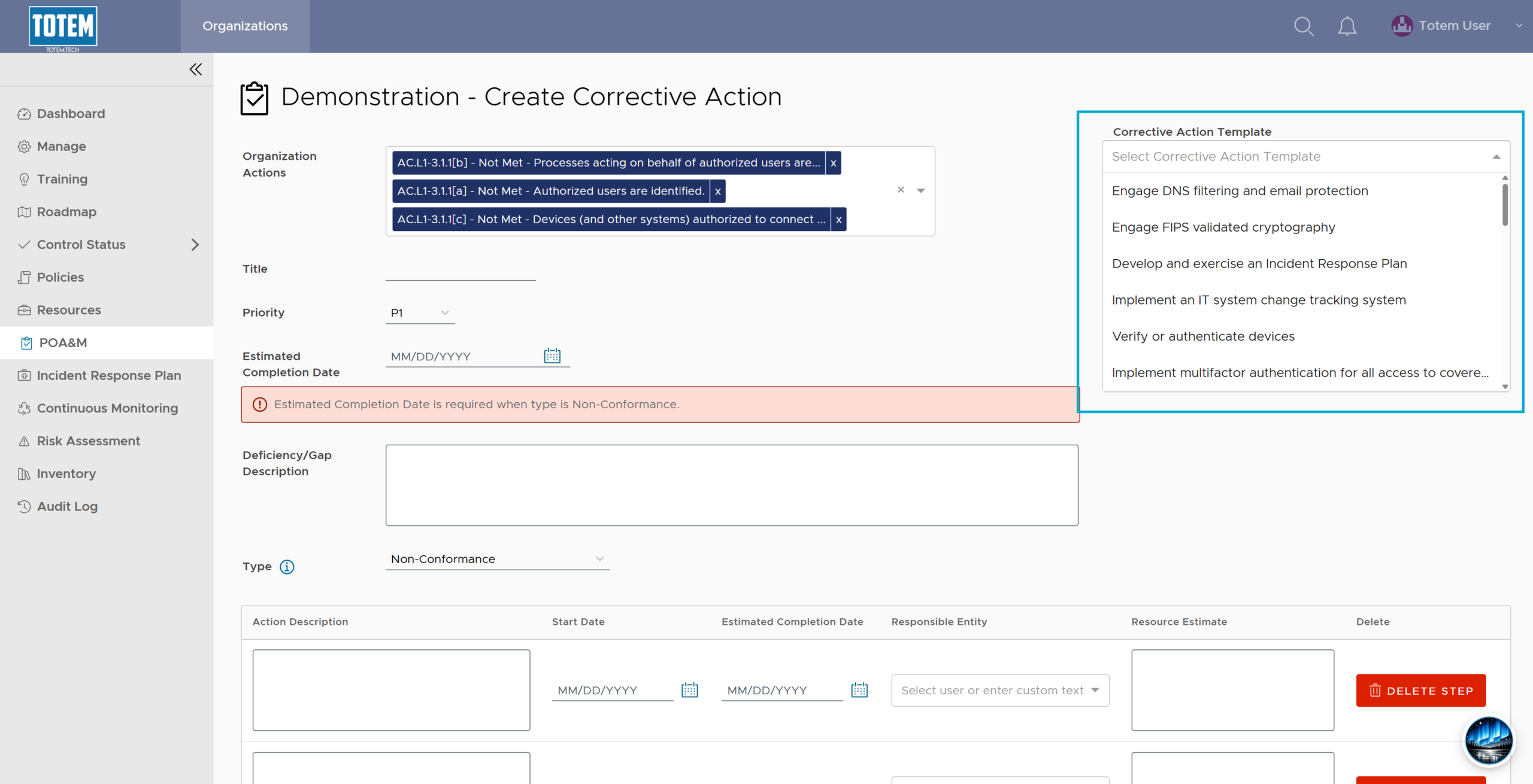
- Once you’ve identified your Organization Actions, you can begin populating your CAP. Totem contains several dozen helpful CAP templates that correspond with common cybersecurity deficiencies. Browse the CAP template list to see if any match the deficiency you’ve identified, and if so, select it.
- Selecting a CAP template will automatically populate most fields, with the exception of any date, Responsible Entity, or Resource Estimate fields. Additionally, selecting a CAP template will automatically mark the CAP Non-Conformance.
- Totem contains three CAP types:
- Non-Conformance: You are deficient in this capability and it is preventing conformance to the standard. Any Organization Actions you add to a Non-Conformance CAP must be Not Met. If an Organization Action is Met, it is therefore conformant and doesn’t need to be on a CAP.
- Operational: Temporary Deficiency: From the CMMC framework. Pertains to something that was once Met, and though while right now is temporarily deficient, it is not preventing conformance to the standard because it is tracked on your Operational Plan of Action. For example, you are utilizing a tool that in the previous version was FIPS-validated, but has since been upgraded, and the current version is not yet FIPS-validated. You may add Met or Not Met Organization Actions to an Operational: Temporary Deficiency CAP.
- Operational: Enduring Exception: From the CMMC framework. Pertains to a situation where a system cannot reasonably be brought into full compliance with an Organization Action, often because changing it would be impractical or impossible. For example, if you run an older Operational Technology system, patching it is likely impossible. This is the case with many Specialized Assets; you need to document in your SSP what risk mitigation efforts you’ve made to protect these systems, then track it here on your Operational Plan of Action. You may add Met or Not Met Organization Actions to an Operational: Enduring Exception CAP.
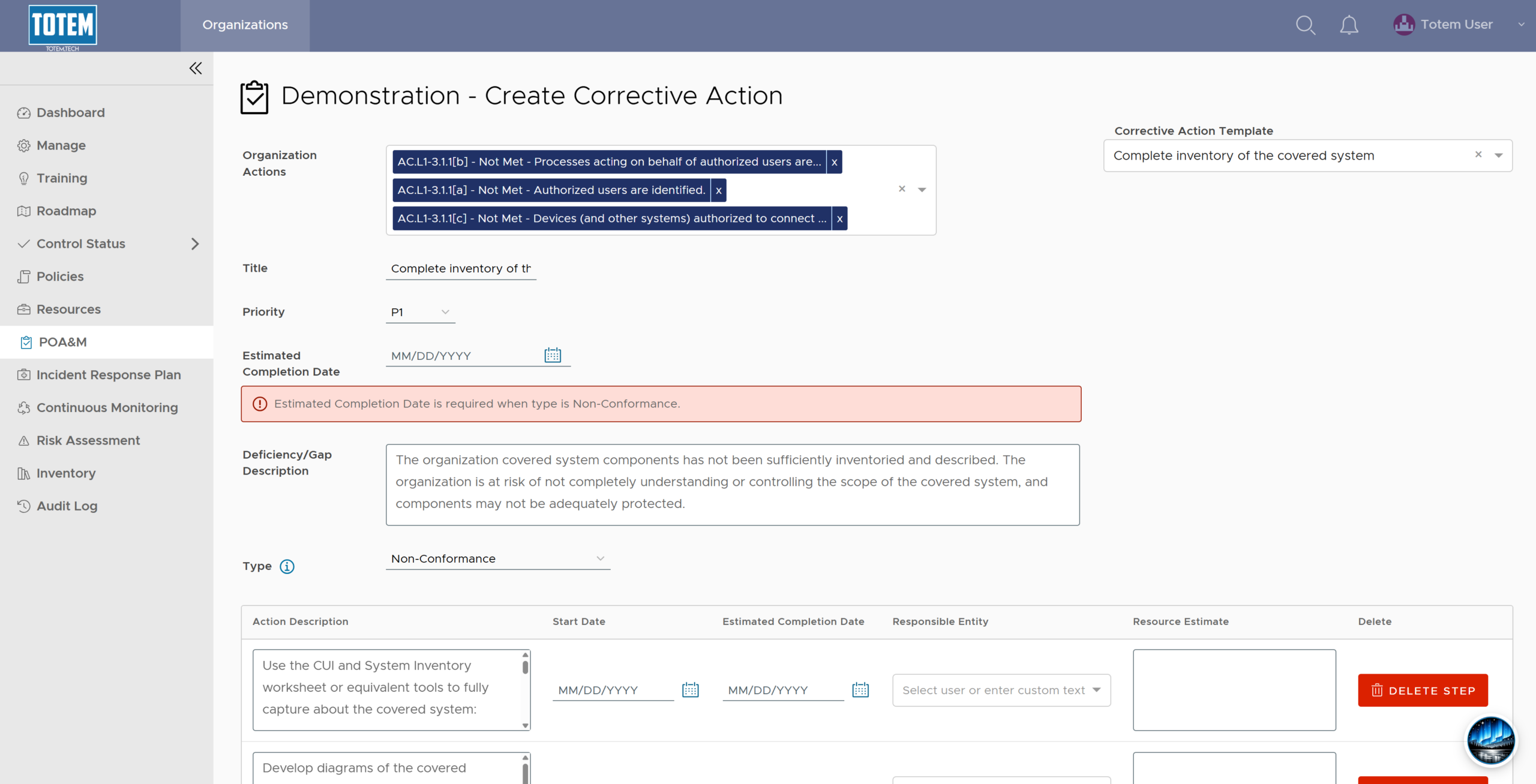
- Review the CAP template text and make any desired adjustments, including adding or removing any steps. Populate Start and Estimated Completion Dates, then assign a responsible entity to each step.
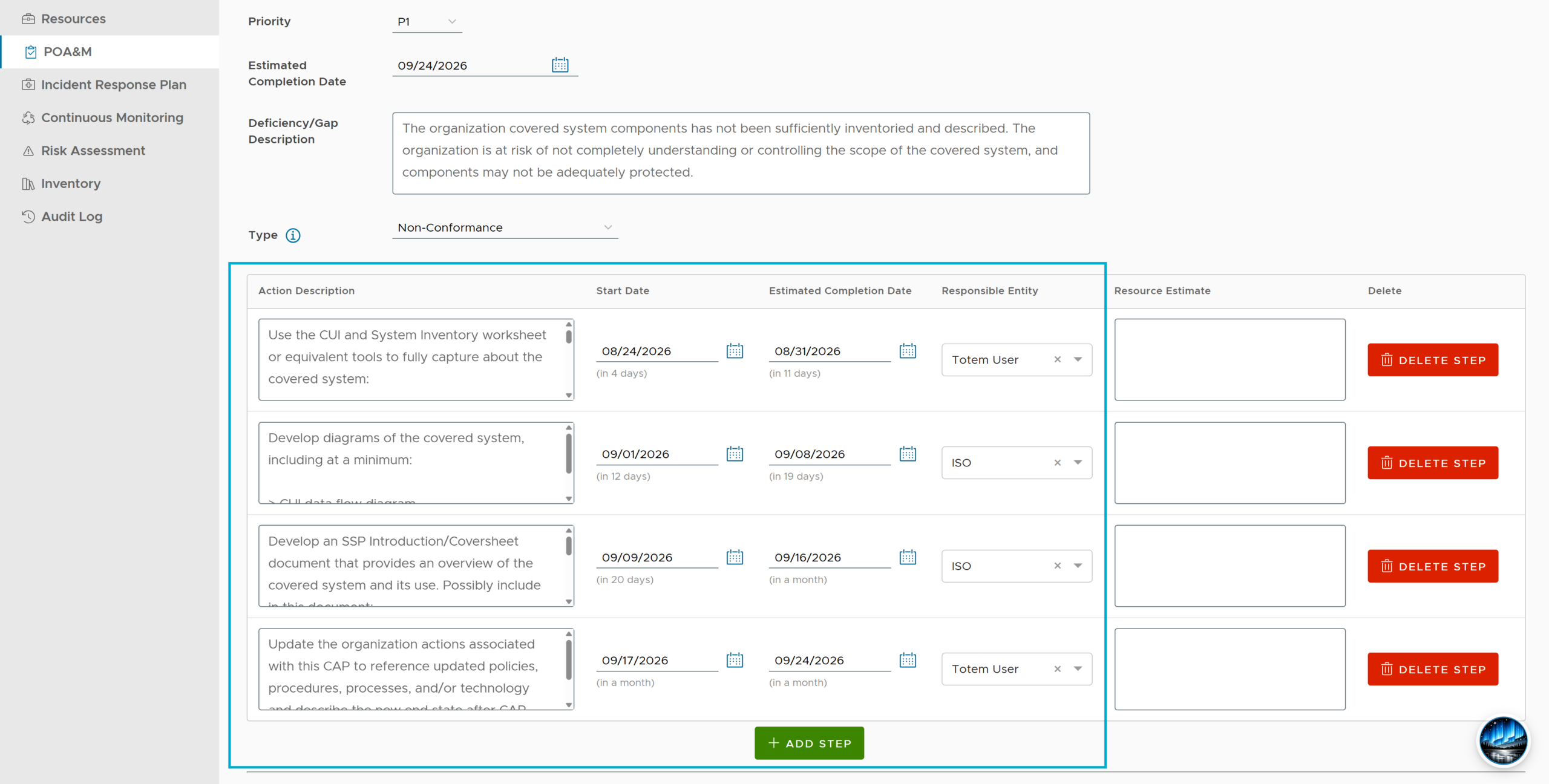
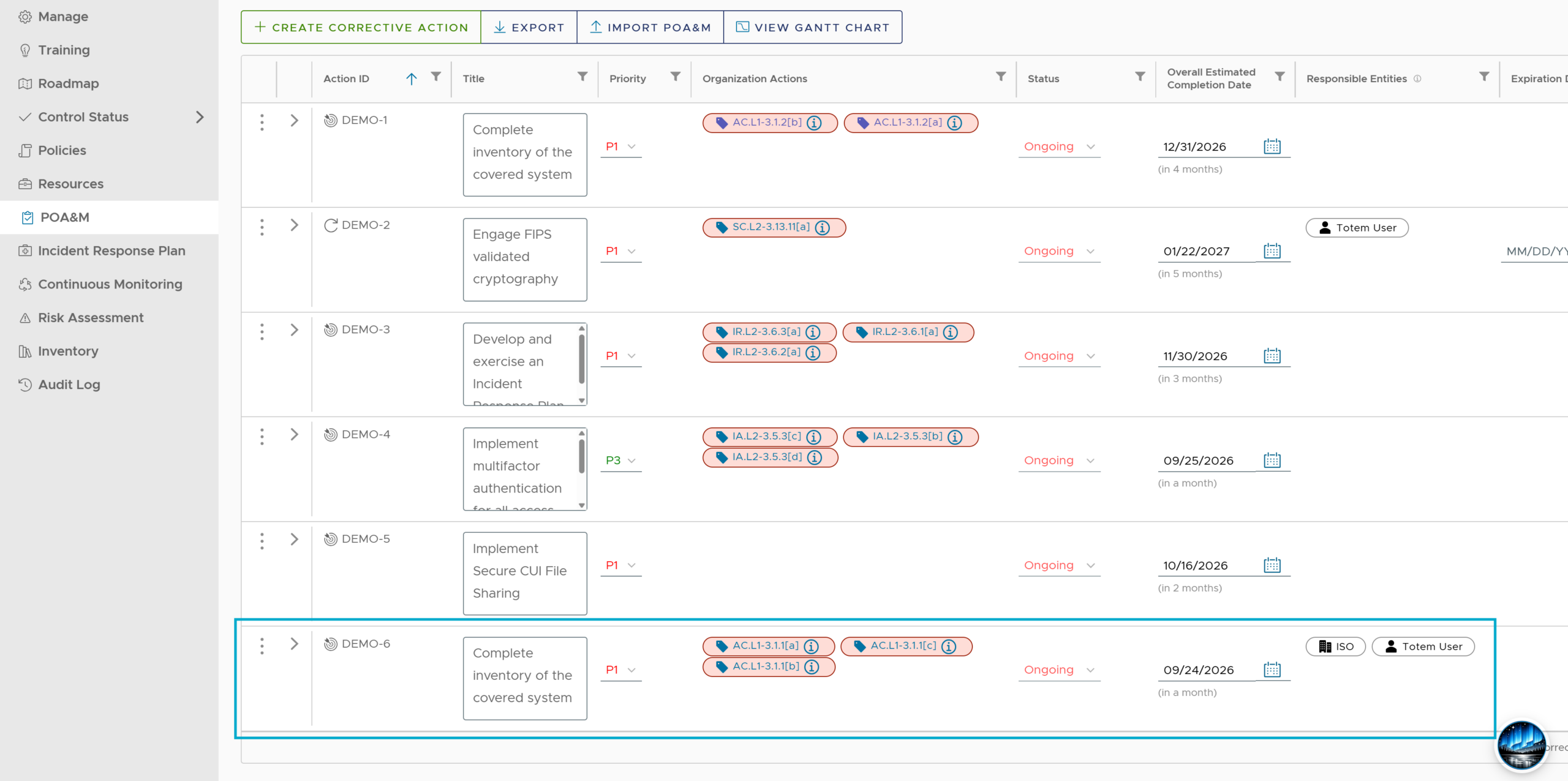
- Once all desired edits have been made, select Create Corrective Action. Your new CAP will appear in the list of other CAPs.
Completing Corrective Action Plans
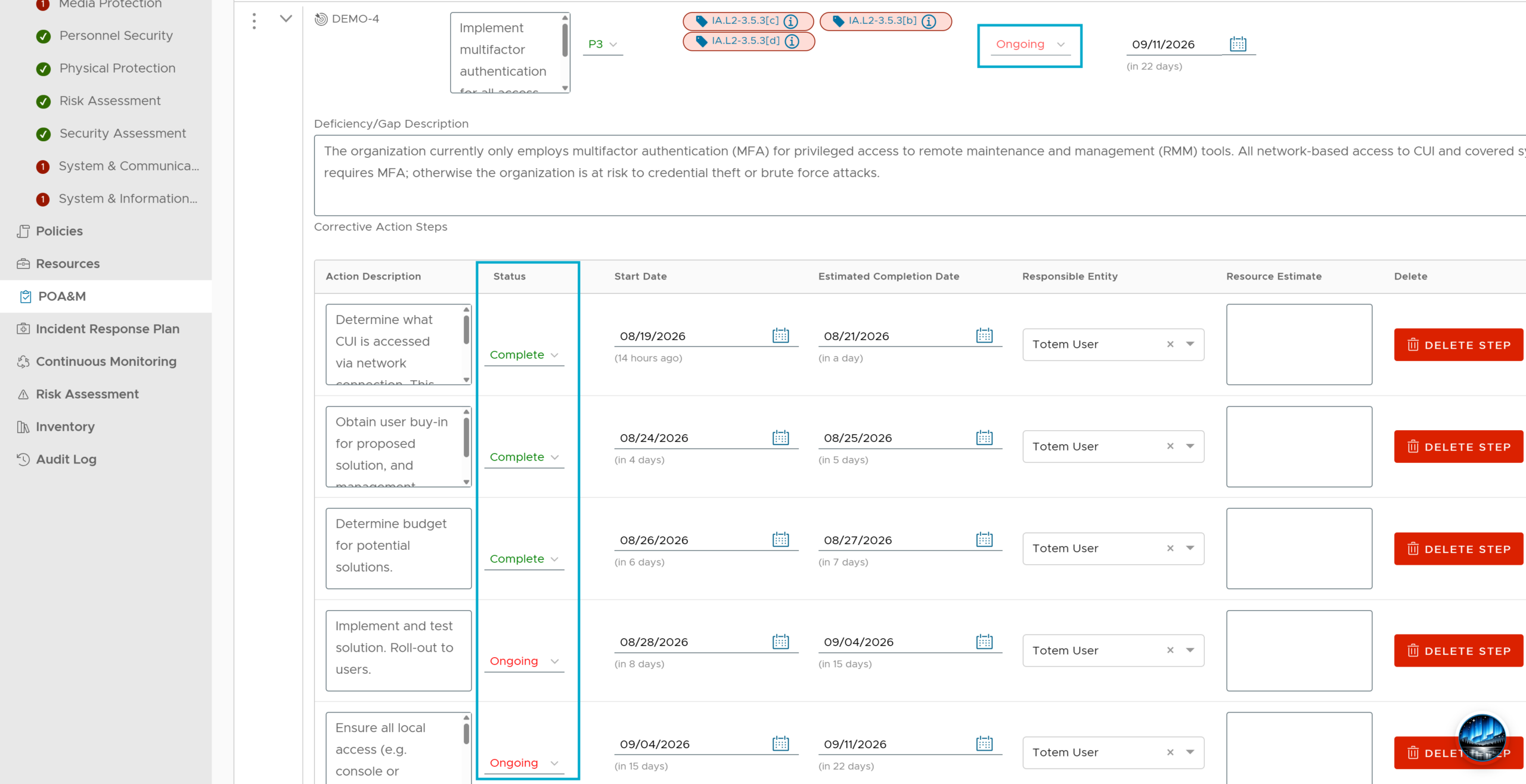
With your CAPs created, you can now get to work implementing them. Each CAP begins in a state of Ongoing, and the CAP remains Ongoing until ALL underlying steps are marked Complete:
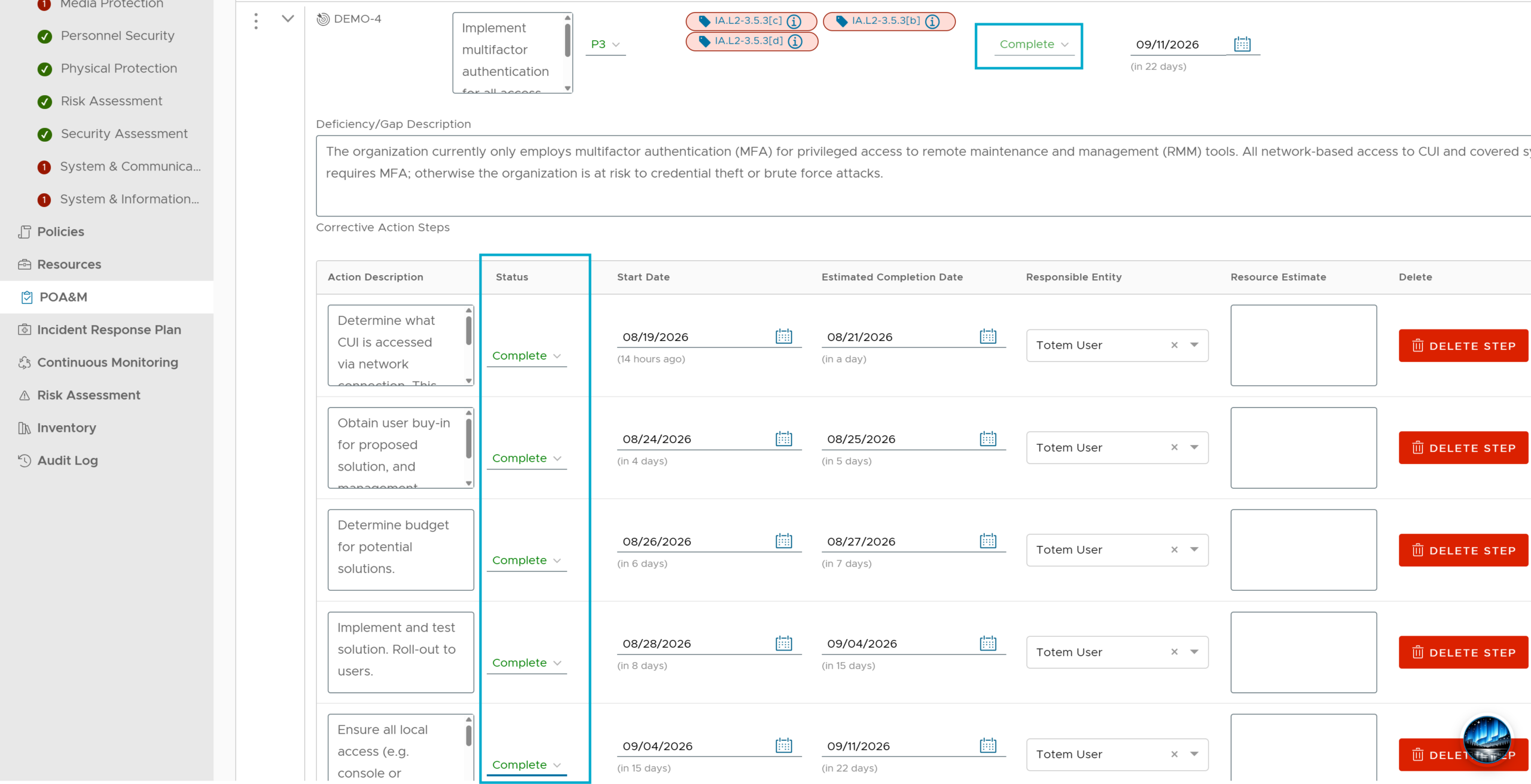
- In addition, for any Non-Conformance CAPs, once the CAP turns to Complete, any Organization Actions that are part of that CAP will automatically be marked Met in the Control Status module, so long as they are not also part of any other Ongoing CAPs:
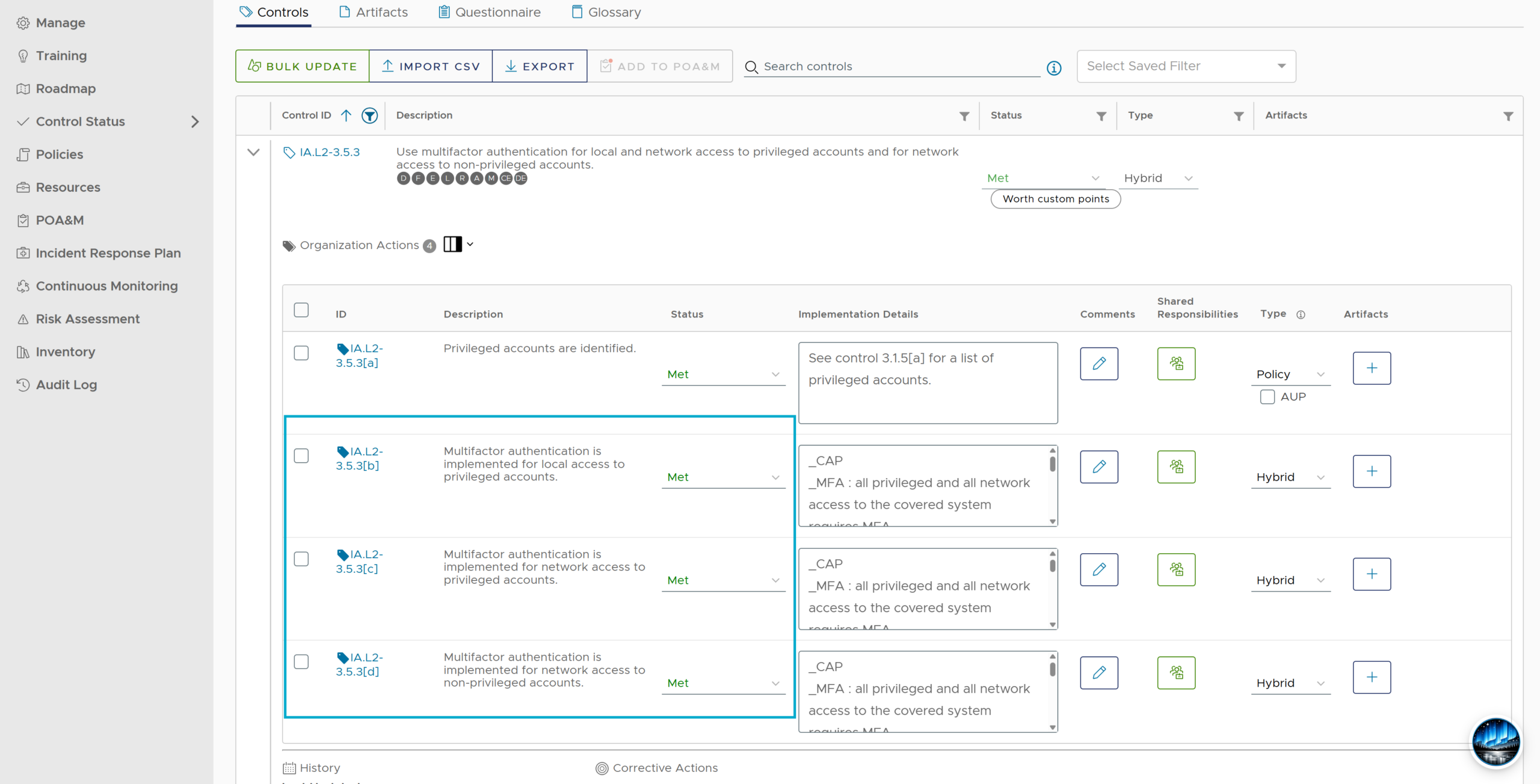
- This saves you considerable time jumping back and forth between the POA&M and Control Status module. If the completed CAP results in the entire control becoming Met, for those pursuing CMMC, you’ll also notice your score increase.
Modifying Corrective Action Plans
You can manage existing Corrective Action Plans, including deleting these plans, adding other Organization Actions, or editing the details of the plan. To do this:
- Select the vertical ellipses (⋮) next to the CAP you want to modify. If you want to delete the CAP, choose Delete Corrective Action. To modify, select Modify more properties.
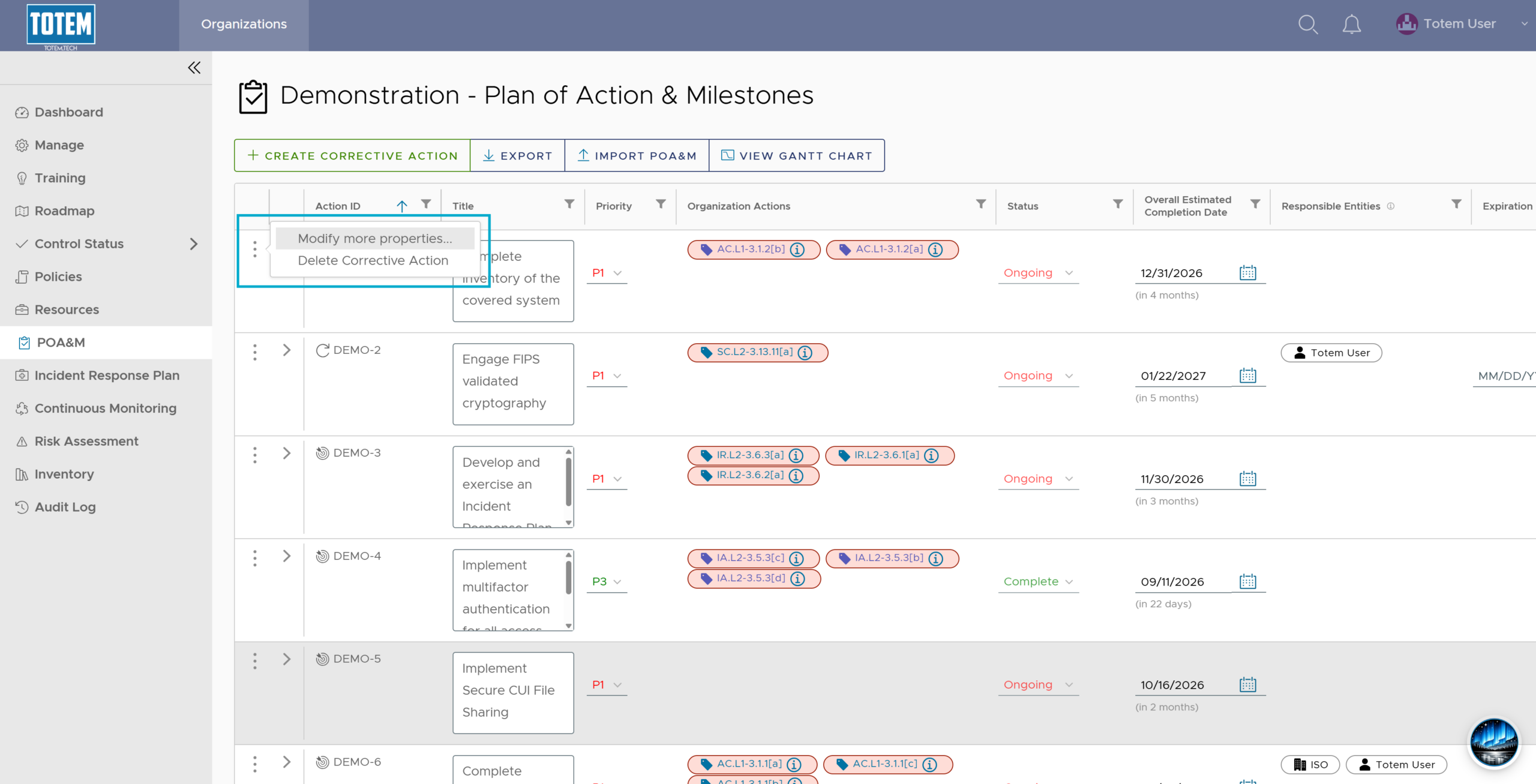
- You can then add/remove any Organization Actions, change the CAP type, or change the Estimated Completion Date. Make any desired changes and select OK.
