Changing a user’s role
Totem instance administrators or users with the Owner role may change the role(s) of any other users in their organization. This guide walks you through how to accomplish this.
To change a user’s role in their organization:
- Log in to Totem.
- Navigate to the Manage module and select the Users & Roles page.
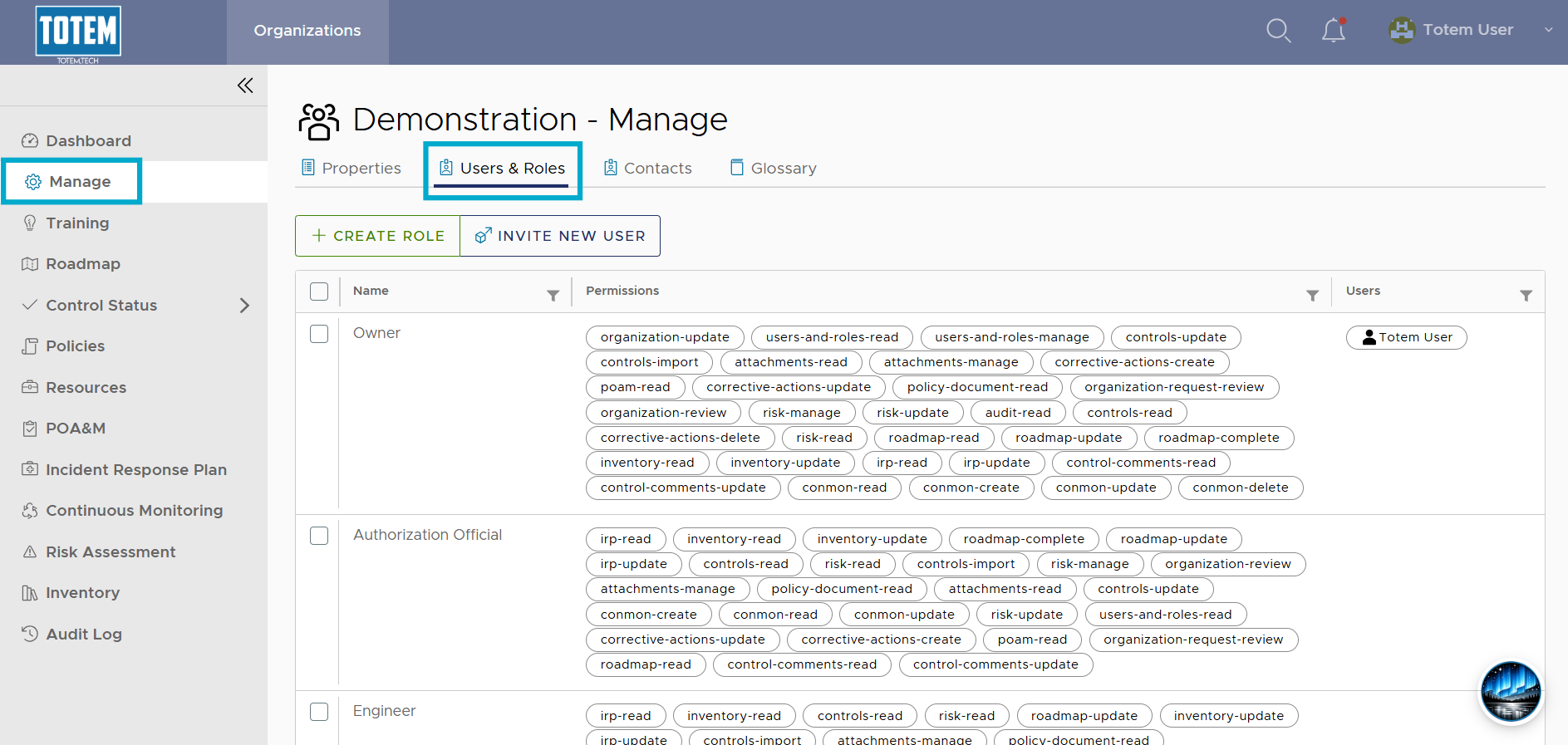
- Select the checkbox next to the new role that you want to assign to the user. At the top of the page, choose Edit. IMPORTANT: Ensure you select the new role first, as removing the old role first will prevent the organization Owner from selecting the user. If this has happened, please contact support.
- In the Users field, select the user’s name from the field. Select Edit Role. The user will now possess two roles within the organization.
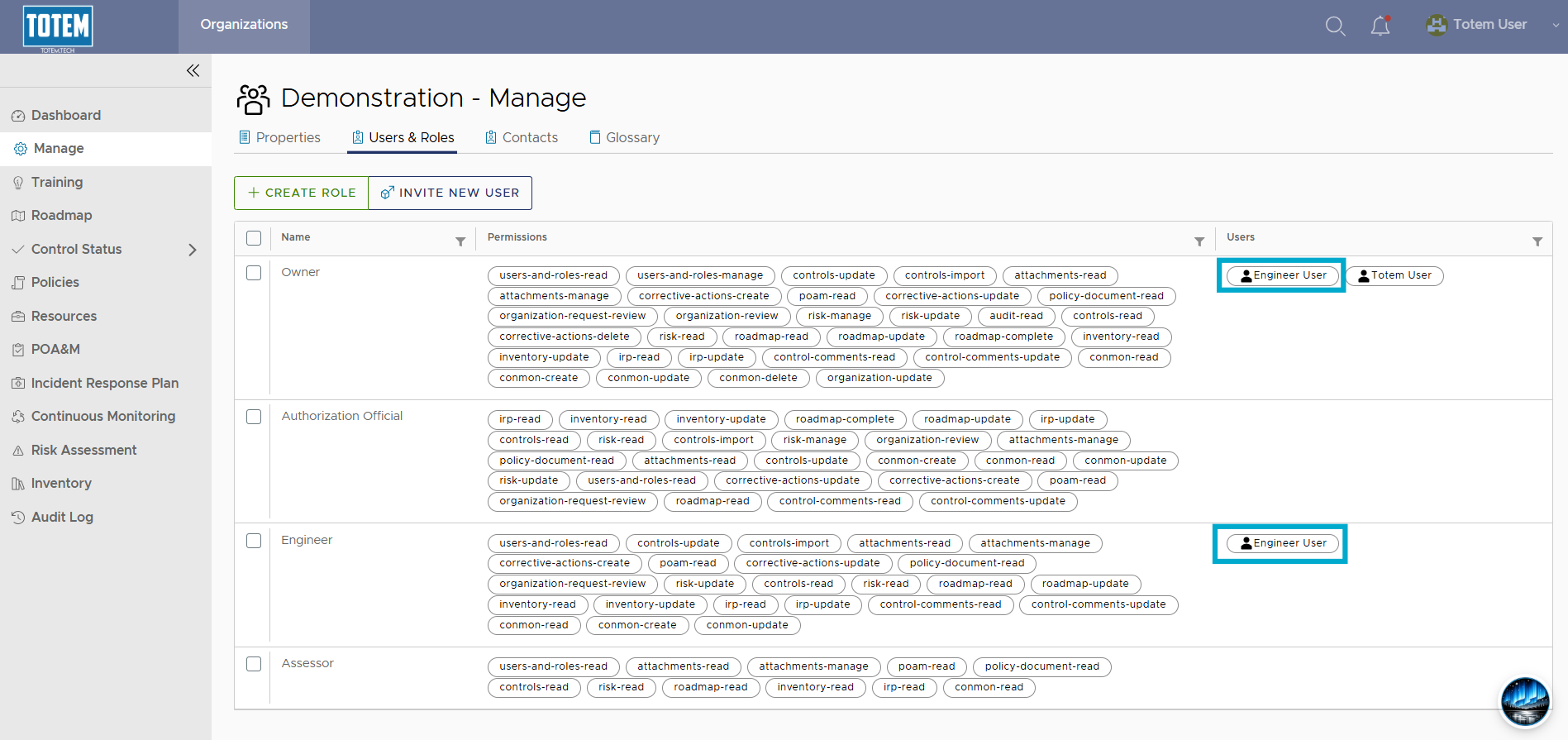
- Select the checkbox next to the current role belonging to the user. At the top of the page, choose Edit.
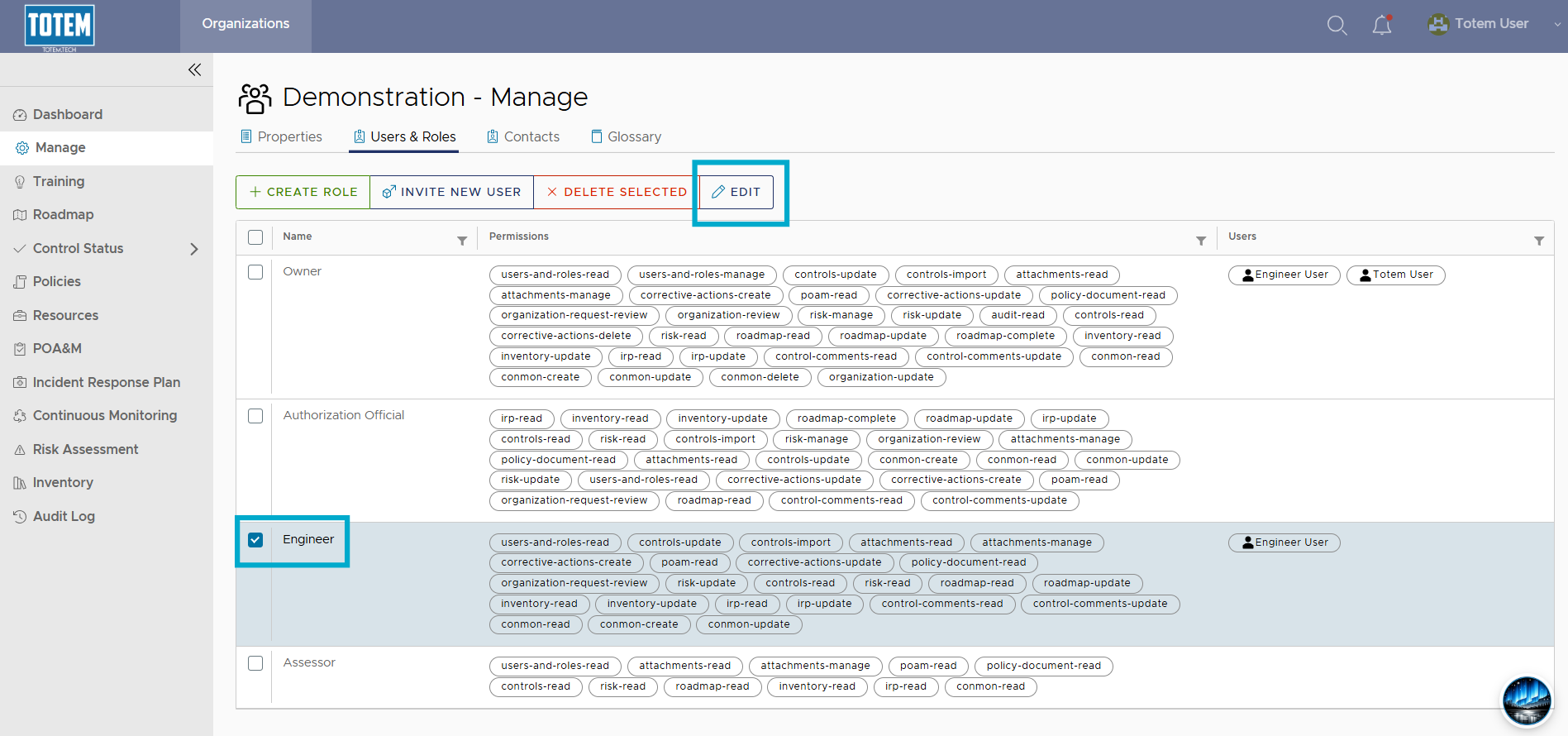
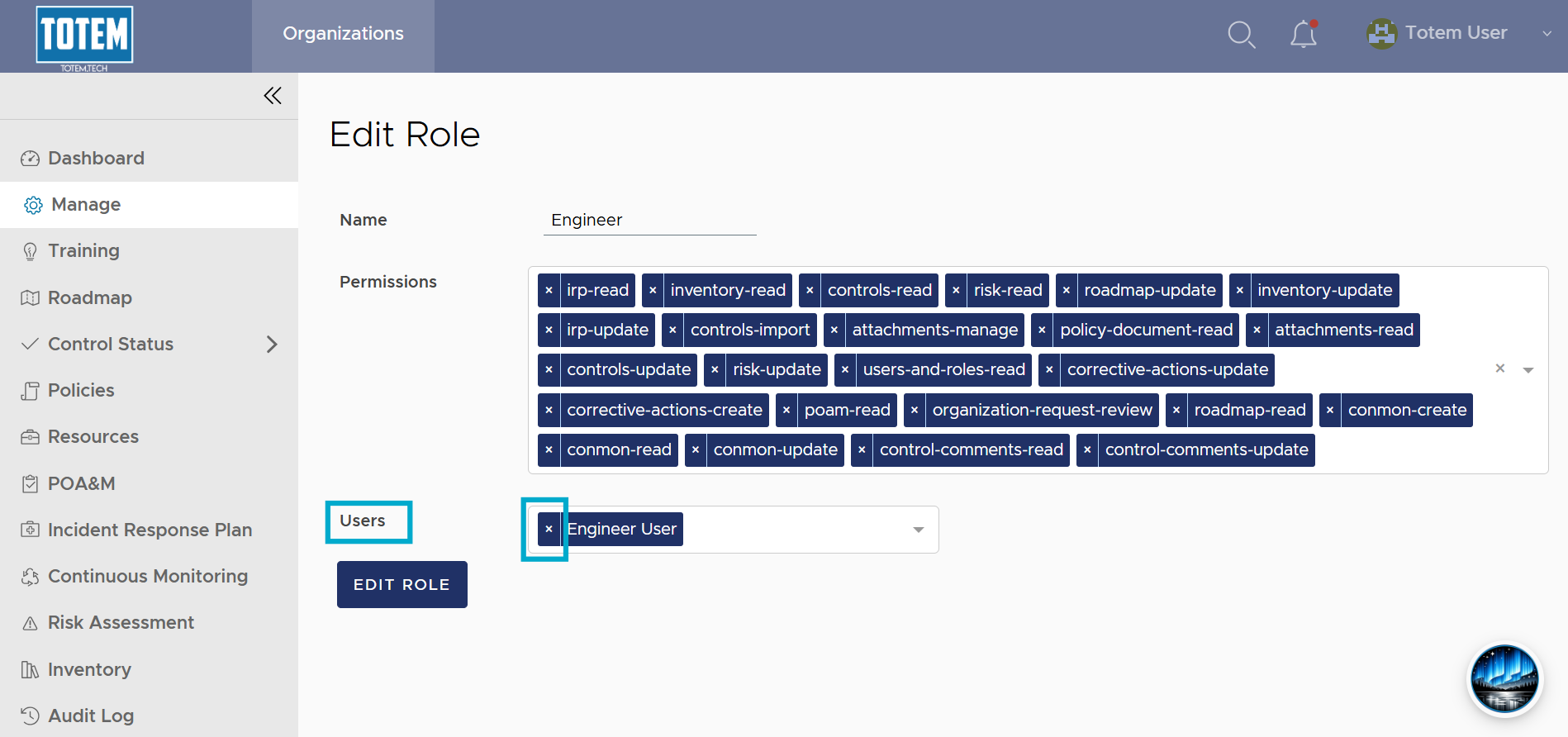
- In the Users field, remove the user’s name from the field. Do not remove anything from the Permissions field, as this will impact permissions assigned to any other users with that role. Select Edit Role.
- See that the user now possesses the new role and its associated privileges.