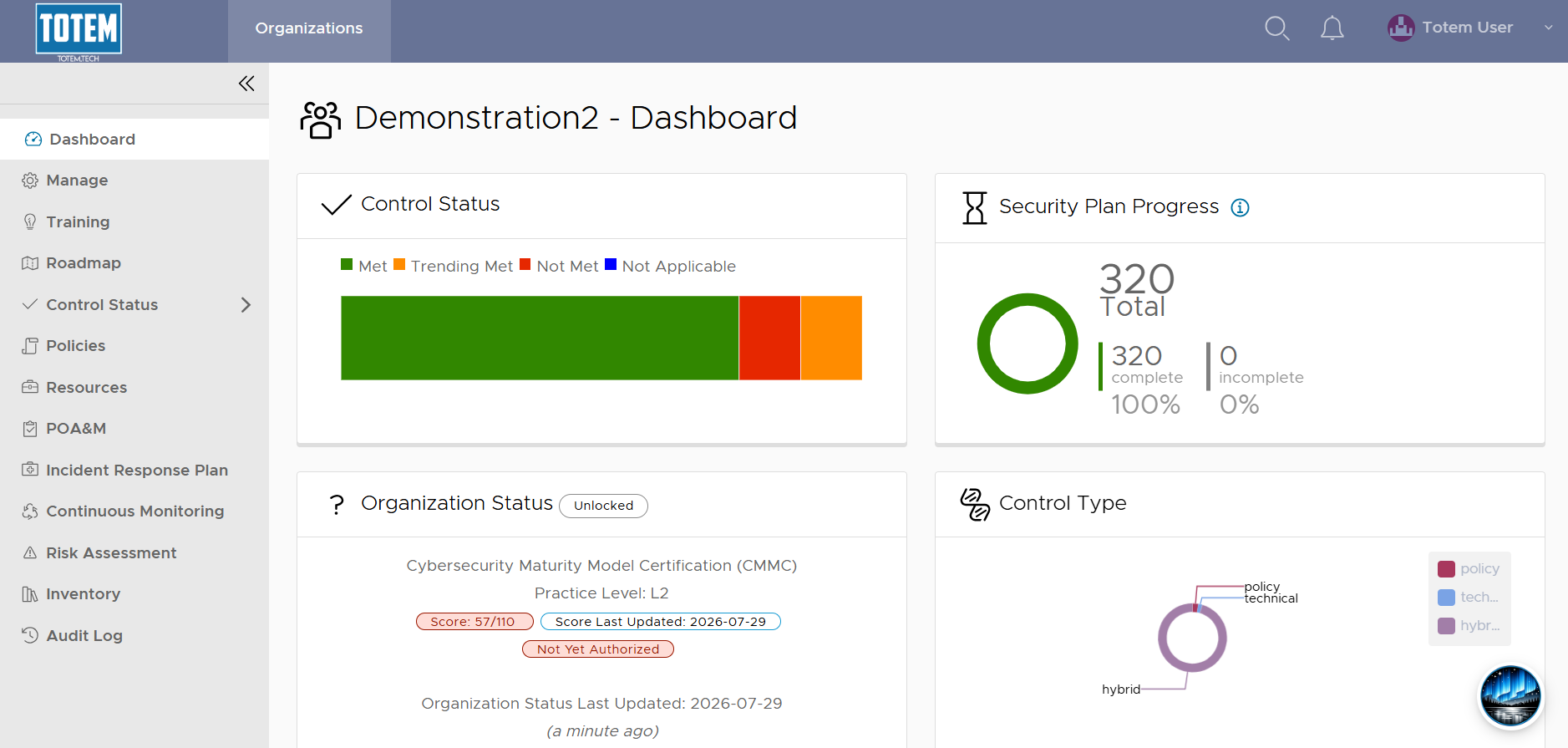
Clone existing organization
Instance administrators can clone an existing Totem organization. This saves a tremendous amount of time re-creating existing policies and Totem data.
- Log in to Totem.
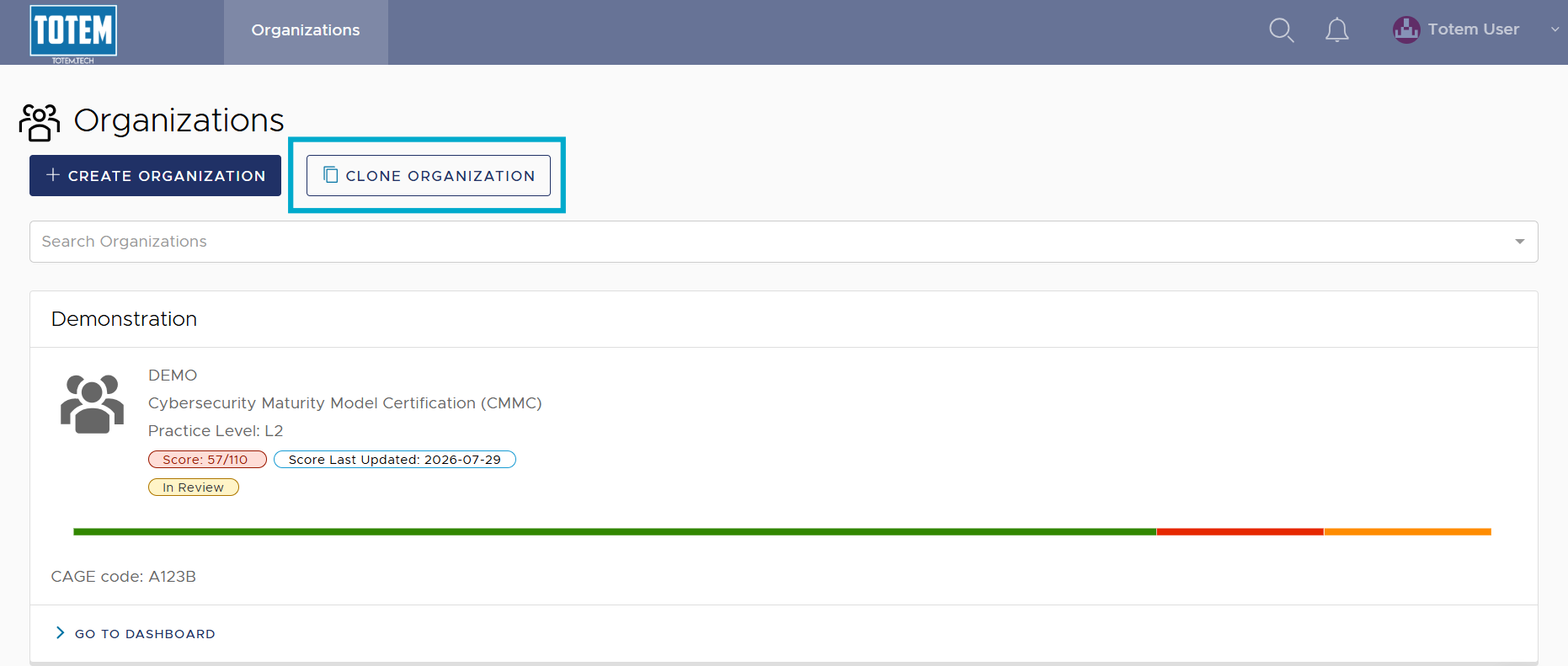
- Navigate to the Organizations page.
- In the top-left corner, select Clone Organization.
- Select a source organization for the clone. This is the organization whose data you want to bring over to the new organization.
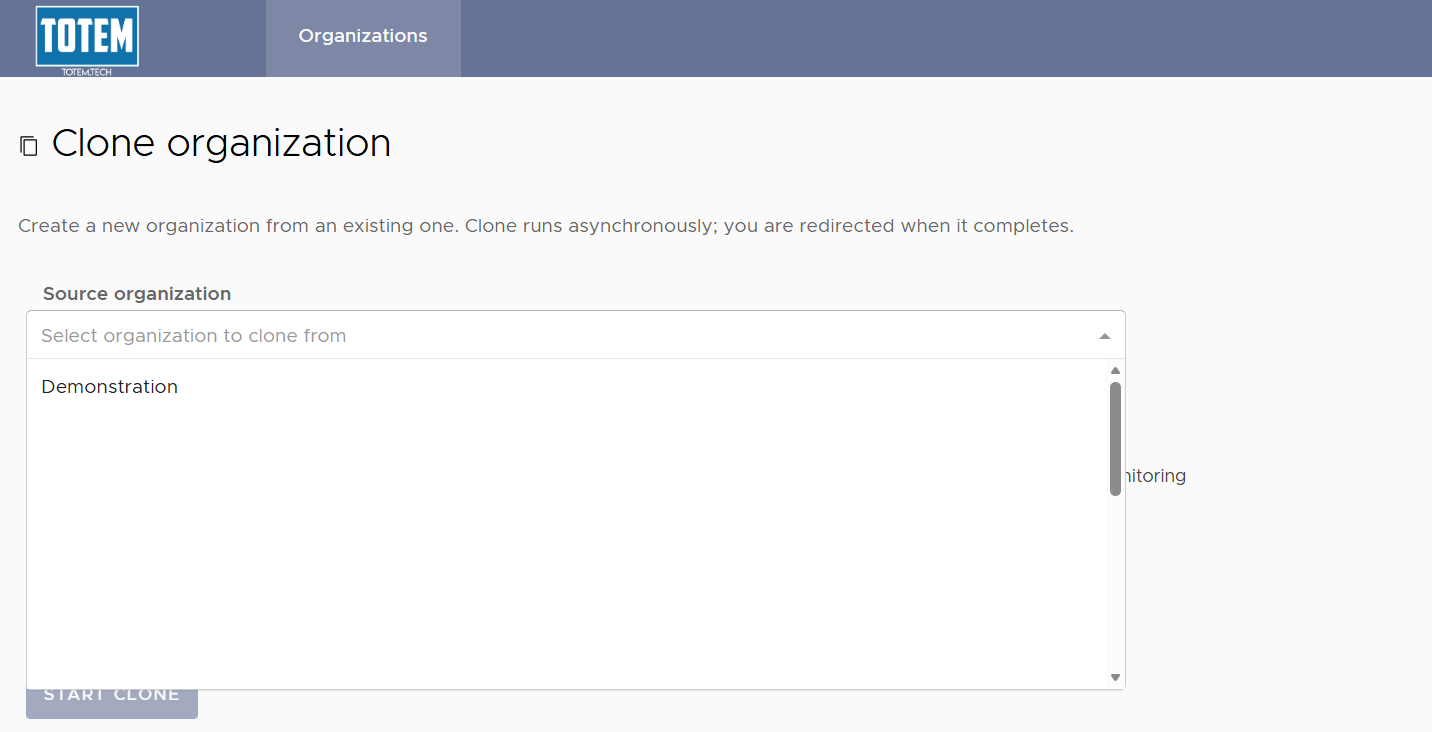
- Select the data from the source organization that you’d like to bring into the new organization. A description of each option is below.
- Controls & OAs: All text fields in the Control Status module, including your Implementation Details, Comments, and Shared Responsibilities. Artifacts (attachments) are not included in the clone.
- Risk Assessment: All in from the Risk Assessment module, including risk results and risk management descriptions.
- Roadmap: All details in the Roadmap module, including completion progress, descriptions, and comments.
- POA&M: All Corrective Action Plans (CAP) in the POA&M module, including all Organization Actions associated with a CAP.
- Contacts: All contacts in the Manage > Contacts page, including all contact information.
- Inventory: All details in the Inventory module, including the CUI, Hardware Assets, and Software Baseline pages.
- IRP: All details in the Incident Response Plan module, including Recovery Metrics and Incident/Exercise Records.
- Continuous Monitoring: All details in the Continuous Monitoring module, including monitoring tasks, responsible entities, and task dates.
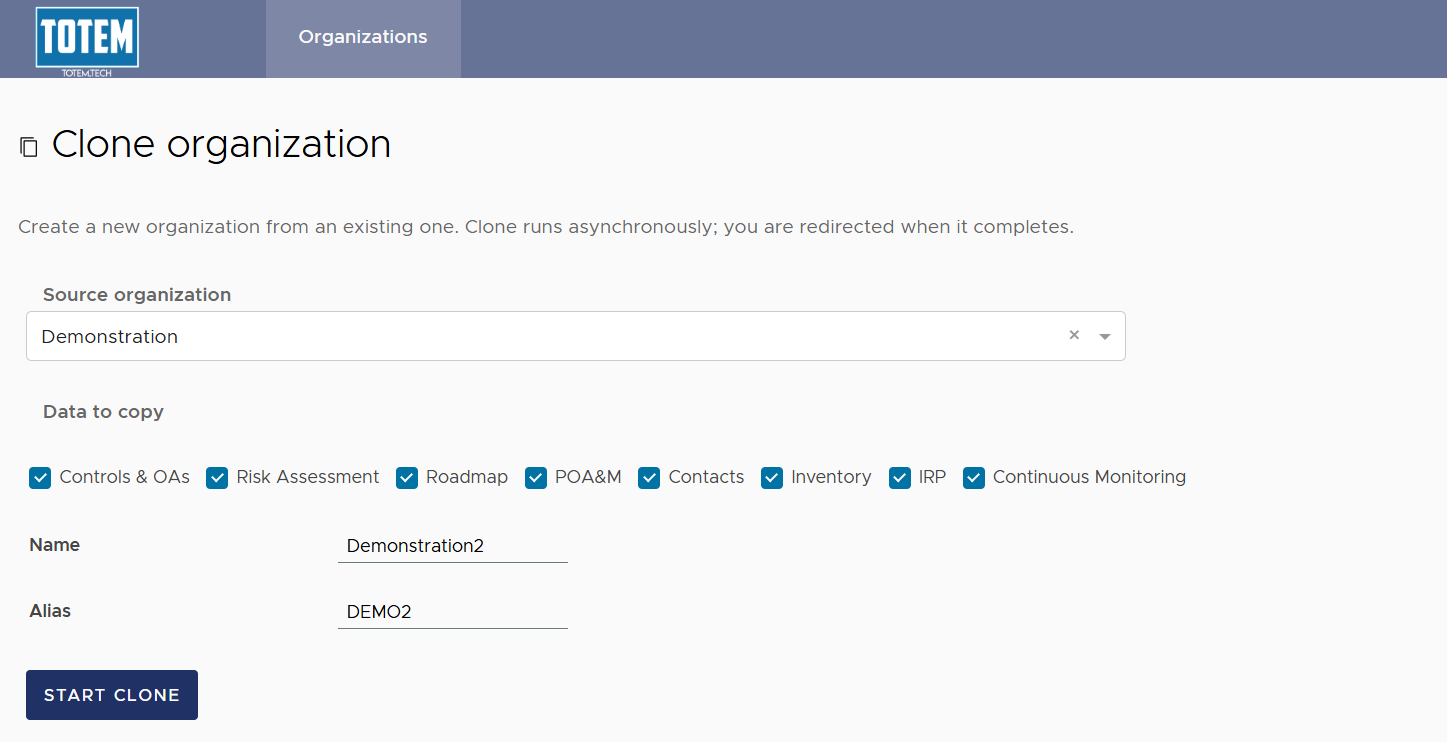
- Provide a name and alias for the new organization.
- Select Start Clone. You will be shown the progress of the clone (e.g., “IN PROGRESS”). Wait for the clone to complete, as you will automatically be redirected to the Dashboard of the new organization.