
Inventorying hardware assets
Totem’s Inventory module helps you keep a catalog of your hardware assets. This guide walks you through creating hardware assets in Totem.
To add a new hardware asset to the inventory:
- Log in to Totem.
- Navigate to the Inventory module. Select the Hardware Assets page.
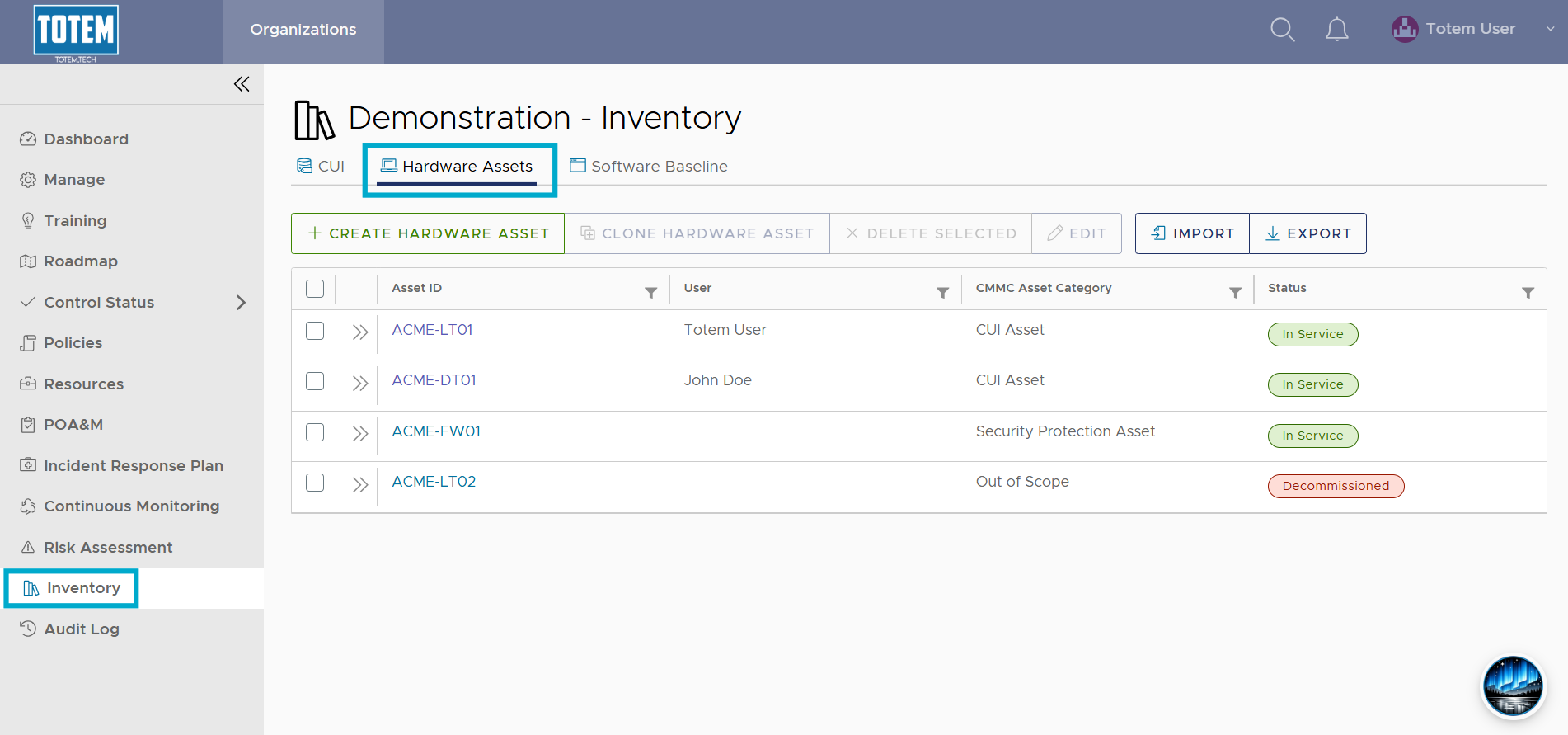
- Select Create Hardware Asset. This will bring up the hardware asset inventory workflow.
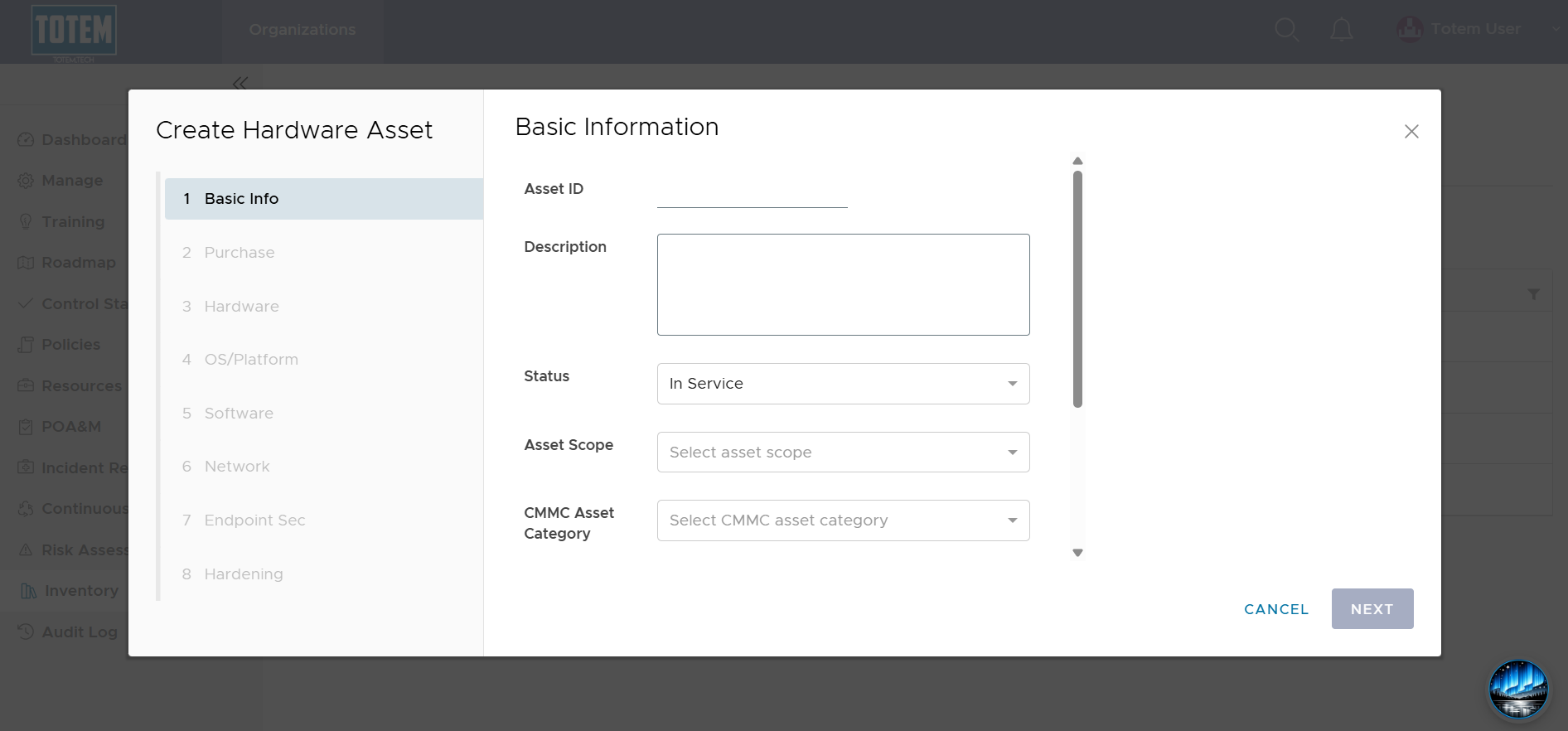
- Populate the hardware asset details. The below guidance clarifies certain fields across the asset inventorying process that can be confusing:
- Asset ID: A unique identifier for the asset, usually tied to the type of device and its number (e.g., “LT” for laptop, “DT” for desktop, etc.). Your organization should create its own asset naming schema (e.g., “ACME-LT01”).
- CMMC Asset Category: This comes right out of the CMMC Level 2 Scoping Guide. Refer to this guide to know which asset category to assign. If you are not a DoW contractor facing CMMC compliance, you can ignore this field.
- Service Tag / EX Number: These are primarily used by Dell and are seven-character unique identification numbers. If you ever need to contact Dell for support, they’ll ask for these.
- Physical Location: Where does the asset “live”? At your organization’s main facility, a satellite office, a home office, etc.?
- Applicable Security Baseline: If you are pursuing CMMC Level 2, you are required per CM.L2-3.4.2 to establish security configuration settings for your assets. These are also known as security baselines. Some examples of security baselines include the Windows 11 Security Baseline, STIGs, or vendor hardening guides.
- Password Policy: Either insert your company’s password policy or reference which external policy is applicable (e.g., your Acceptable Use Policy).
- When finished populating all desired fields, select Done. Your new hardware asset will appear in the list.
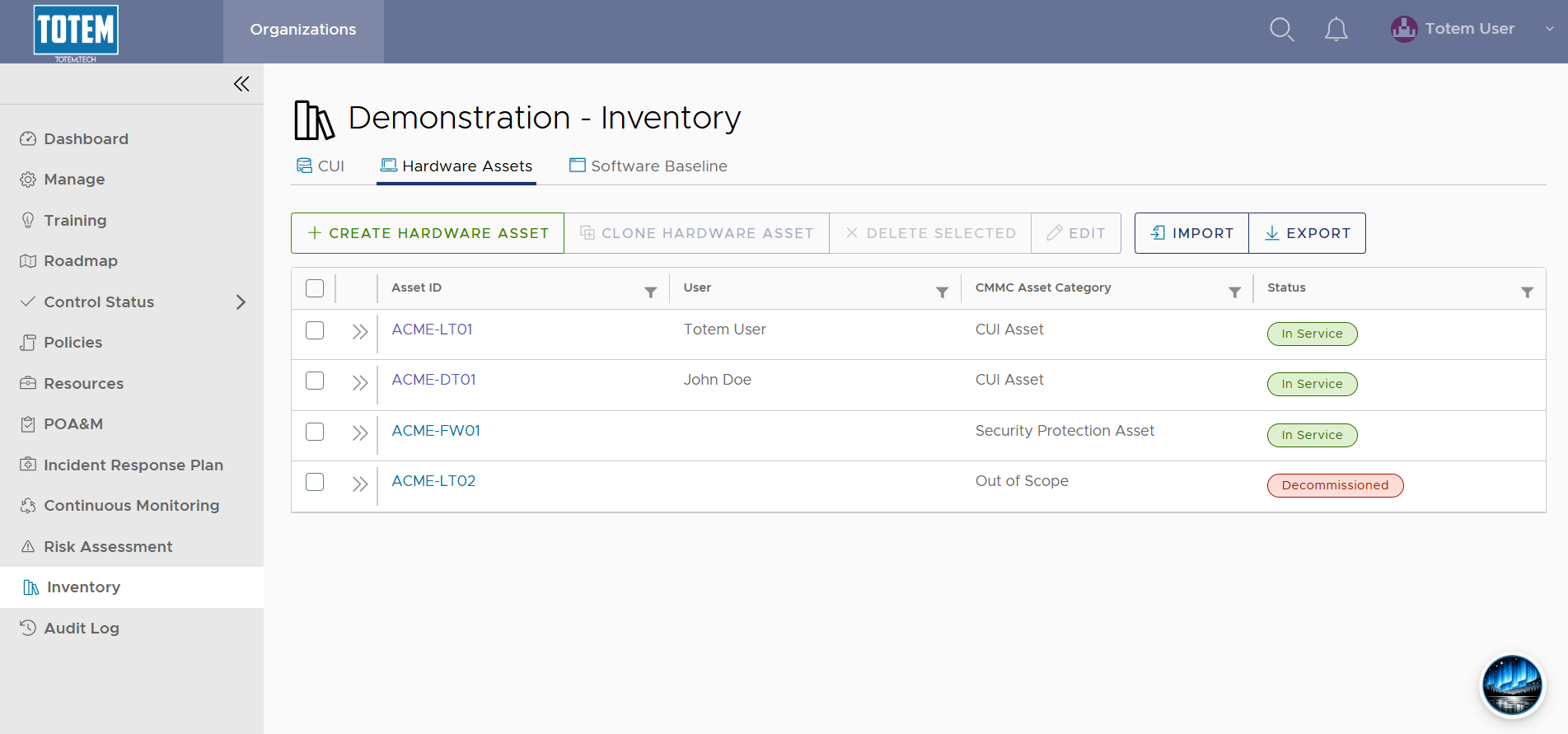
- Repeat for any additional hardware assets you’d like to create. Alternatively, you can clone an existing hardware asset or import an existing hardware asset spreadsheet to save yourself time.