Inviting a new user
Inviting new Totem users is done via the Manage module and may only be done by instance administrators or by organization Owners. Invitations are good for 24 hours.
To invite a new user to Totem:
- Log in to Totem.
- Navigate to the Manage module and select the Users & Roles page.
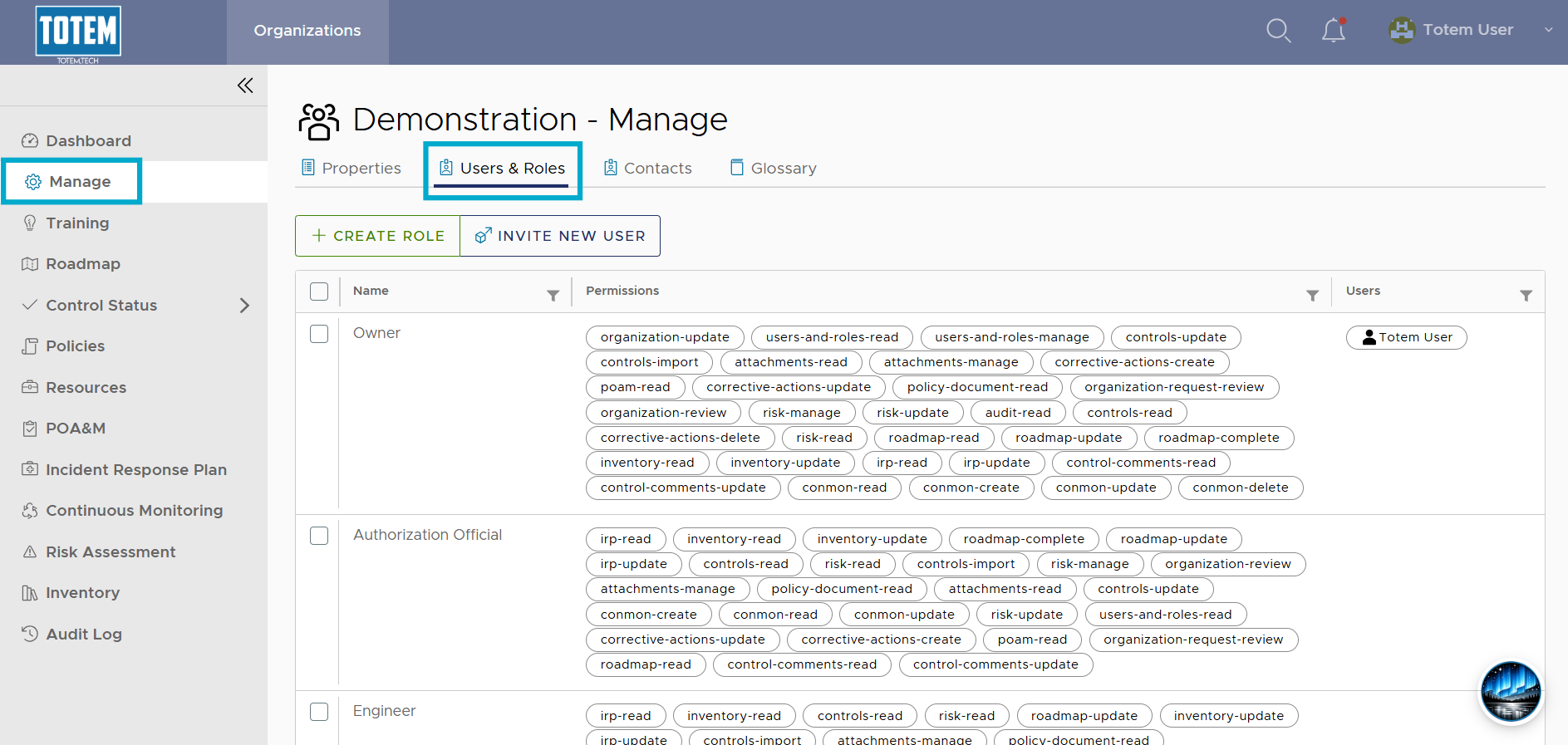
- Select Invite New User. The user invitation form will appear.
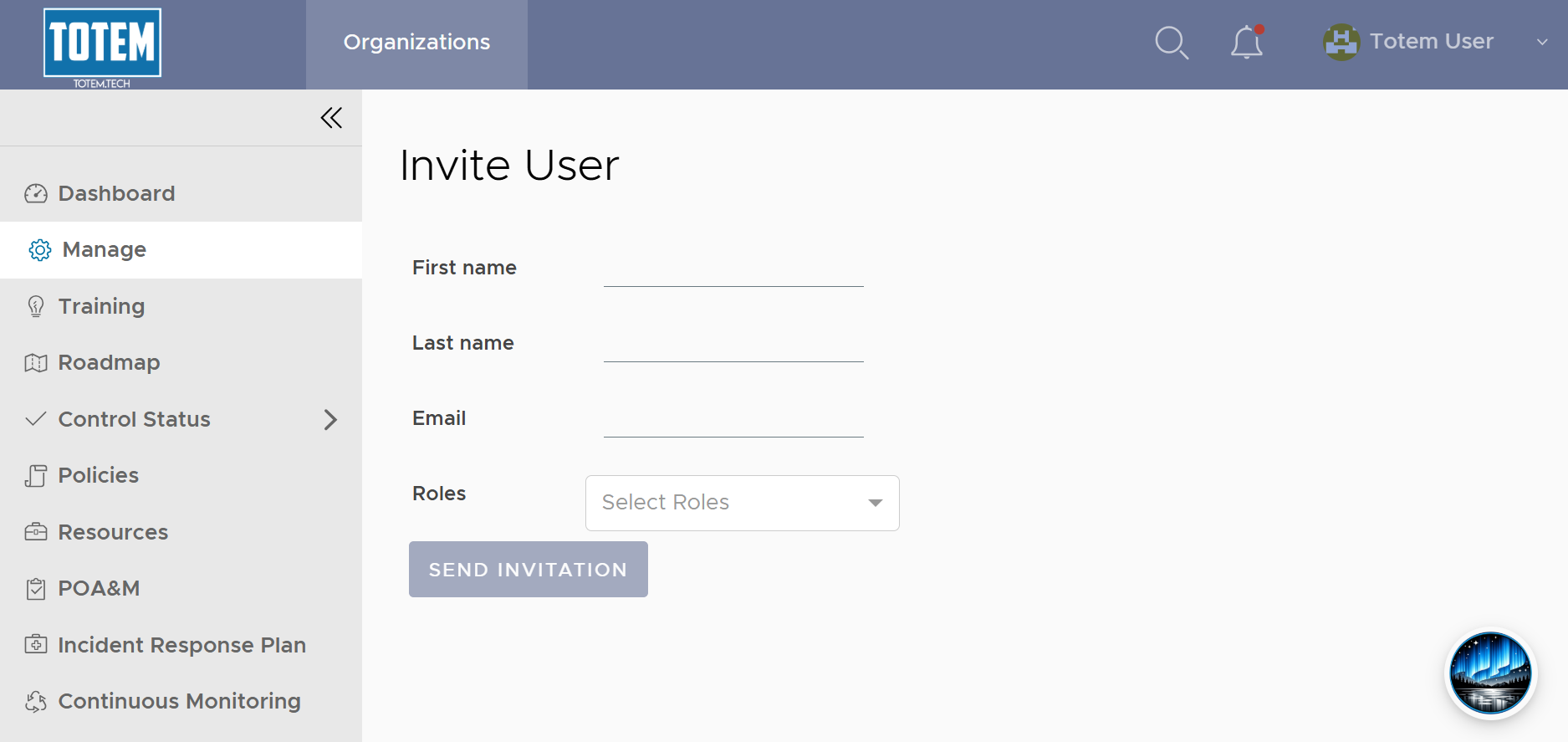
- Populate the form with the new user’s details. NOTE: The email address is case-sensitive, so adjust depending on user’s preference when logging in. Descriptions of each pre-canned role are below:
- Owner: Can read and write all details across all modules within their organization. Cannot perform instance-level permissions, such as deleting their organization. Ideal for the organization’s Information Security Officer or whomever else is managing the company’s cybersecurity compliance program.
- Authorization Official: Can read and write details across nearly all modules, with the exception of the Audit Log. Limited in which Manage details it can update, such as the Organization Status. Ideal for the organization’s authorization official, typically a senior executive such as the President or CEO.
- Engineer: Can read and write details across nearly all modules, with the exception of Manage and Audit Log. Ideal for system technicians and those assisting with the ongoing documentation and maintenance but that do not require Owner-level permissions.
- Assessor: Has purely read-only rights across the organization. Ideal for those who need to view but not update the organization, such as senior executives or external assessors/auditors.
- With the invitation form populated, select Send Invitation. An email invite will be sent to the user, which will contain a URL for the user to select and create their account. This invitation is good for 24 hours and will come from [email protected].
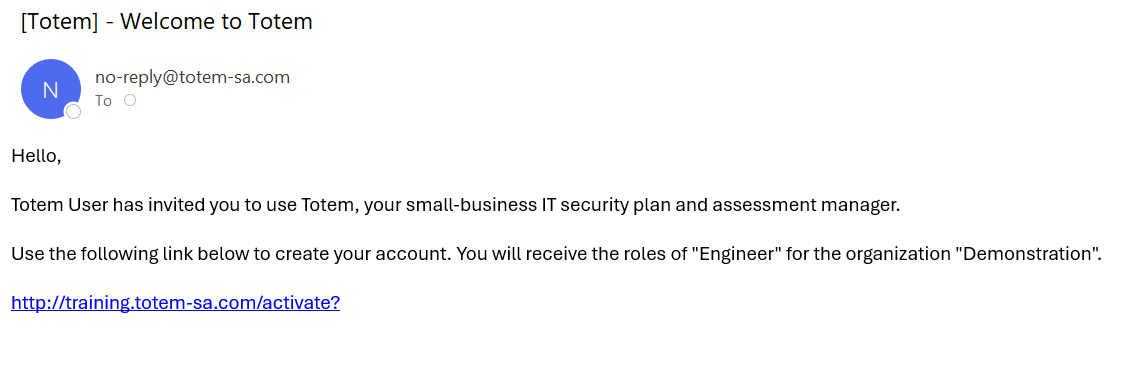
- NOTE: The URL in the screenshot above is for demonstration purposes. Your URL will differ.
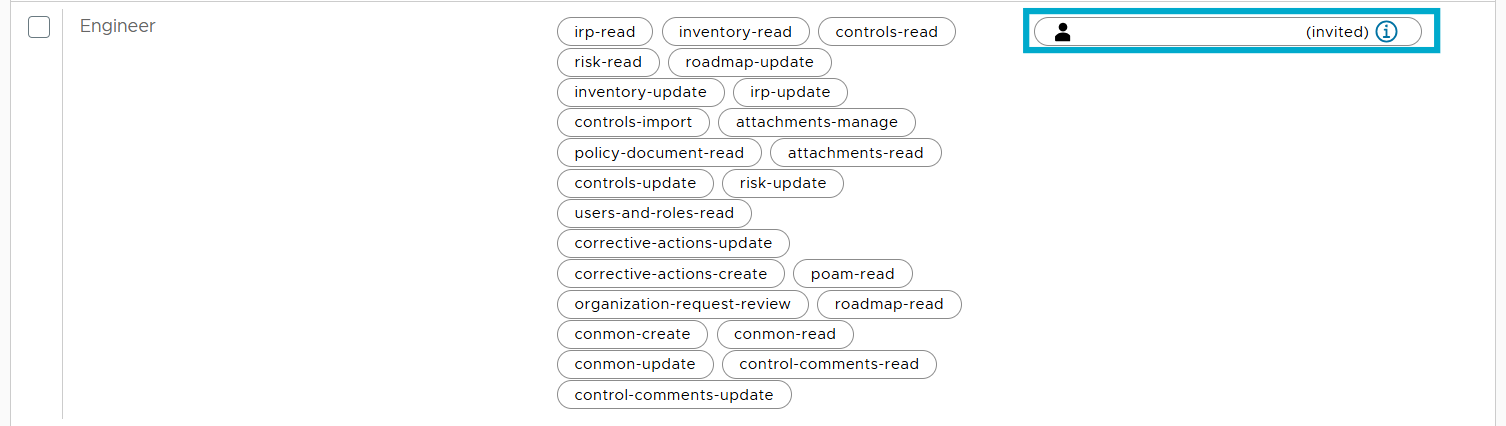
- After inviting a new user, their email address will appear next to their assigned role but in an (invited) state. Once the user has finished creating their account, their full name will appear next to their role rather than their username.