Log in to Totem
You can log in to Totem using a combination of:
- email, password, and multi-factor authentication (MFA) token, or
- email and a passkey.
To log in to Totem:
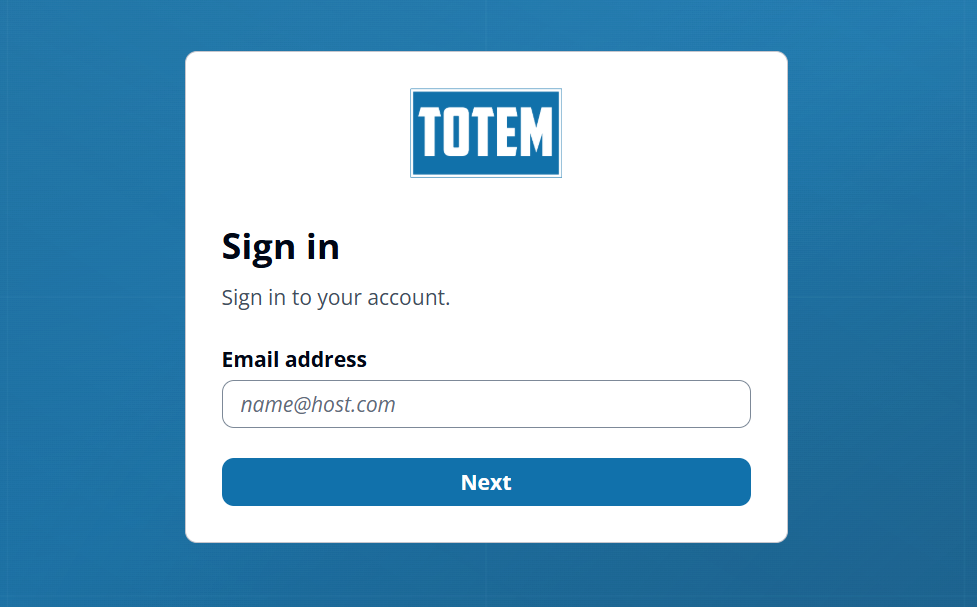
- Open a web browser (e.g., Google Chrome, Microsoft Edge, etc.) and navigate to your login page. Note: Your login URL was specified at the time of account creation. If you’ve forgotten or lost your link to the login page, please contact support.
- In the Email address field, please enter the email address associated with your Totem account. Your email address is case-sensitive. Click Next.
- If you have an existing account and have set up a passkey (e.g., a token stored in your password manager or on your local device), you will be presented with the option to sign in using your passkey. If desired, select Continue. Otherwise, choose Use password instead.
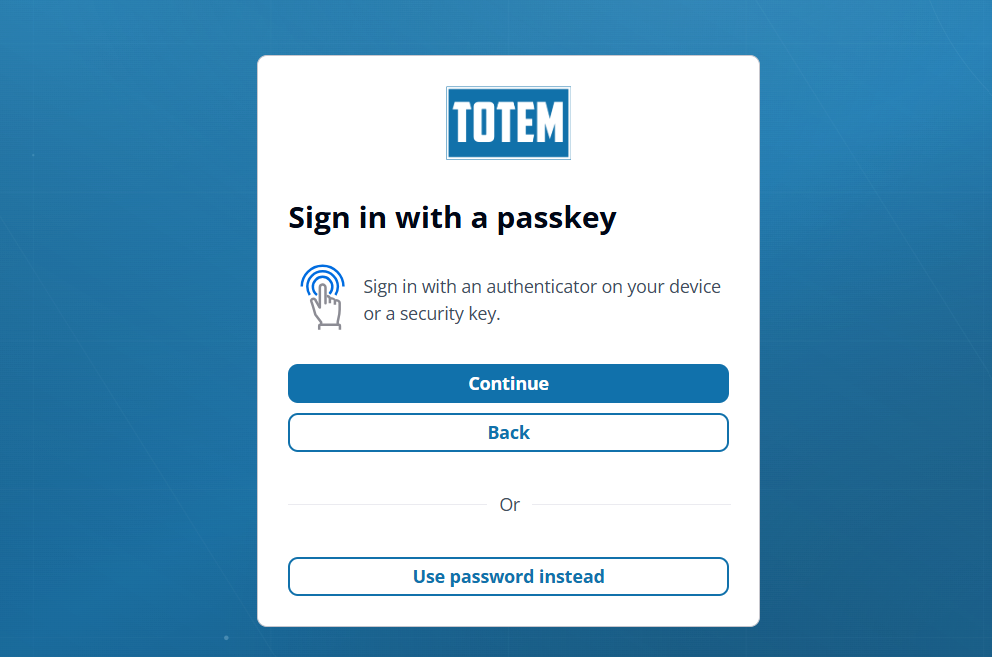
- If you choose to continue sign-in with your passkey, and the passkey is accepted, you will be authenticated into Totem.
- If you choose to sign in using a password, you’ll be prompted to enter your password.
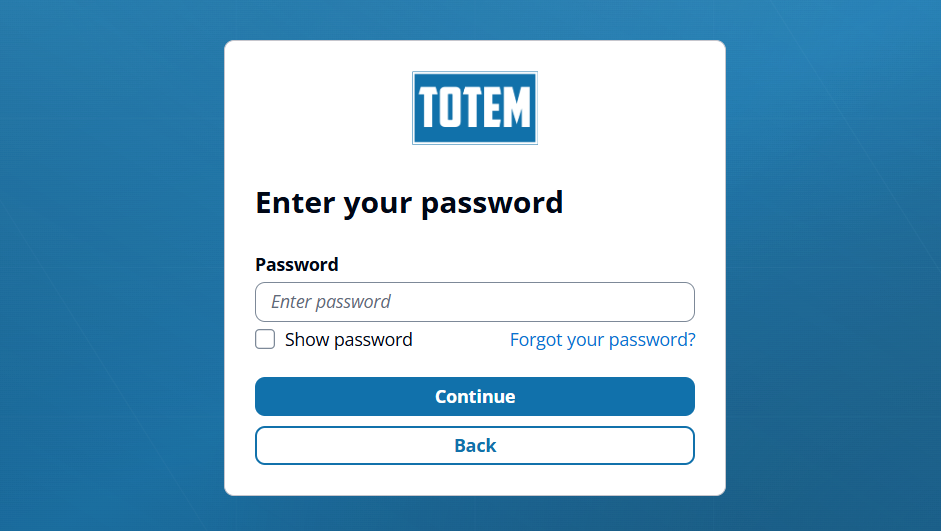
- Enter your password. If accepted, you will be prompted to enter your MFA token. Your MFA token is found in whichever MFA authenticator method you chose during account creation, such as an authenticator app (e.g., DUO, Microsoft Authenticator, Google Authenticator, etc.) or your password manager.
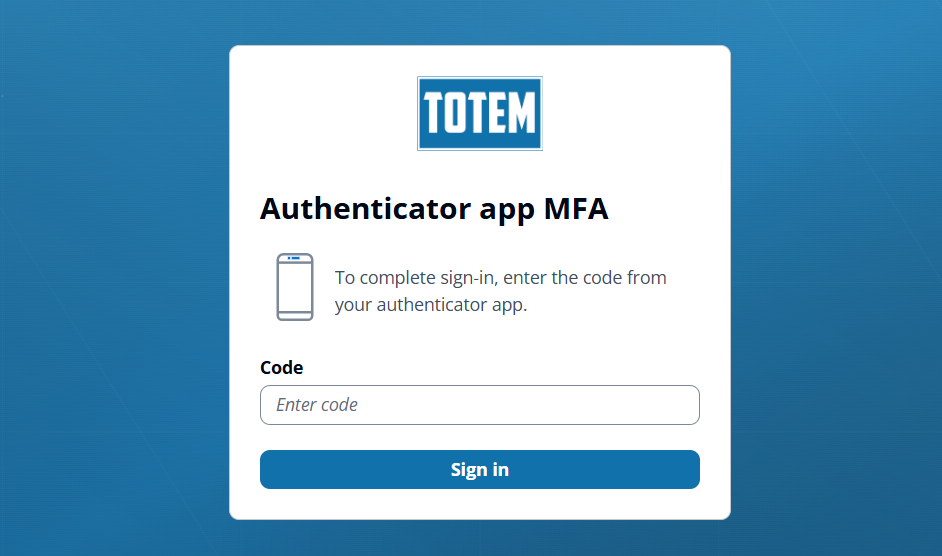
- Enter your MFA token. If accepted, you will be authenticated into Totem.
Important notes
Before you attempt to log in, please note the following:
- Multi-factor authentication (MFA), whether via an MFA token or a passkey, is required for use of Totem. This helps us ensure your account and data remain protected.
- Only Totem customers or free trial users may log in to Totem.
- If you attempt to log in and are unable to do so, your account may have been deactivated. Please contact support if you believe you should have access to your account.
- If you’ve forgotten your password:
- On the Enter your password screen, please choose Forgot your password?. This will send a code to your email, which you will enter to begin the password reset process. If you do not receive a code via email, your email address either does not exist in Totem, the email was sent to your spam/junk folder, or the email was caught up in your email quarantine mechanism. Please add https://auth.totem-sa.com to your email allowlist to ensure successful delivery. If you still don’t receive the code, please contact support.
- If you’ve lost your MFA authenticator, please contact support.
- If you’ve lost your passkey, but still have your MFA authenticator, you can login using your password + MFA token, then reset your passkey in your Totem Profile.
- If you are being prompted for a passkey, but have never set up a passkey, please contact support.