
Set up a passkey
If you’d prefer not to use a password + MFA token to log in to Totem, you may optionally choose to set up a passkey. Passkeys are intended to replace passwords, as they by design cannot be stolen. Passkeys are stored in a location (e.g., your device or in a password manager) and are retrieved when you attempt to authenticate into Totem. Ensure your password manager or local device supports passkeys before proceeding. To set up a passkey during account creation:
- Select the Totem invitation link you received via email.
- Create your account and ensure that you select Enable Add a passkey after creating my account. If you forget to enable this, you can add a passkey later.
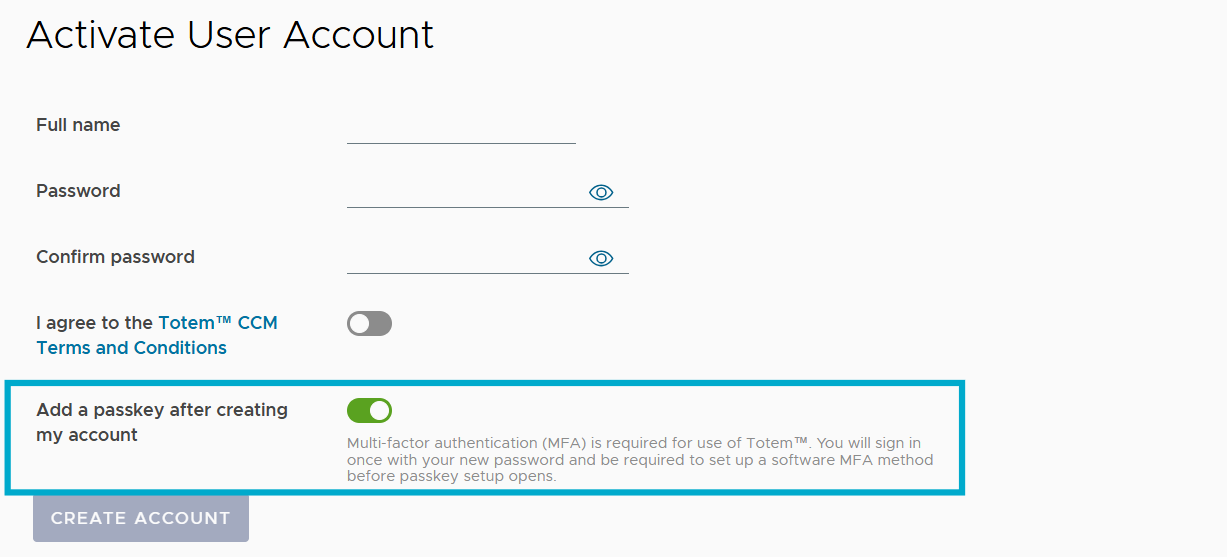
- Proceed through the Log in process, including setting up MFA via an authenticator app. Once you’ve done so, you’ll see the following screen:

- Select Add passkey. Save the passkey to your preferred location, such as your local device or a browser-based password manager.
- If the passkey saves successfully, you will automatically be authenticated into Totem.
To set up a passkey after account creation:
- Log in to Totem.
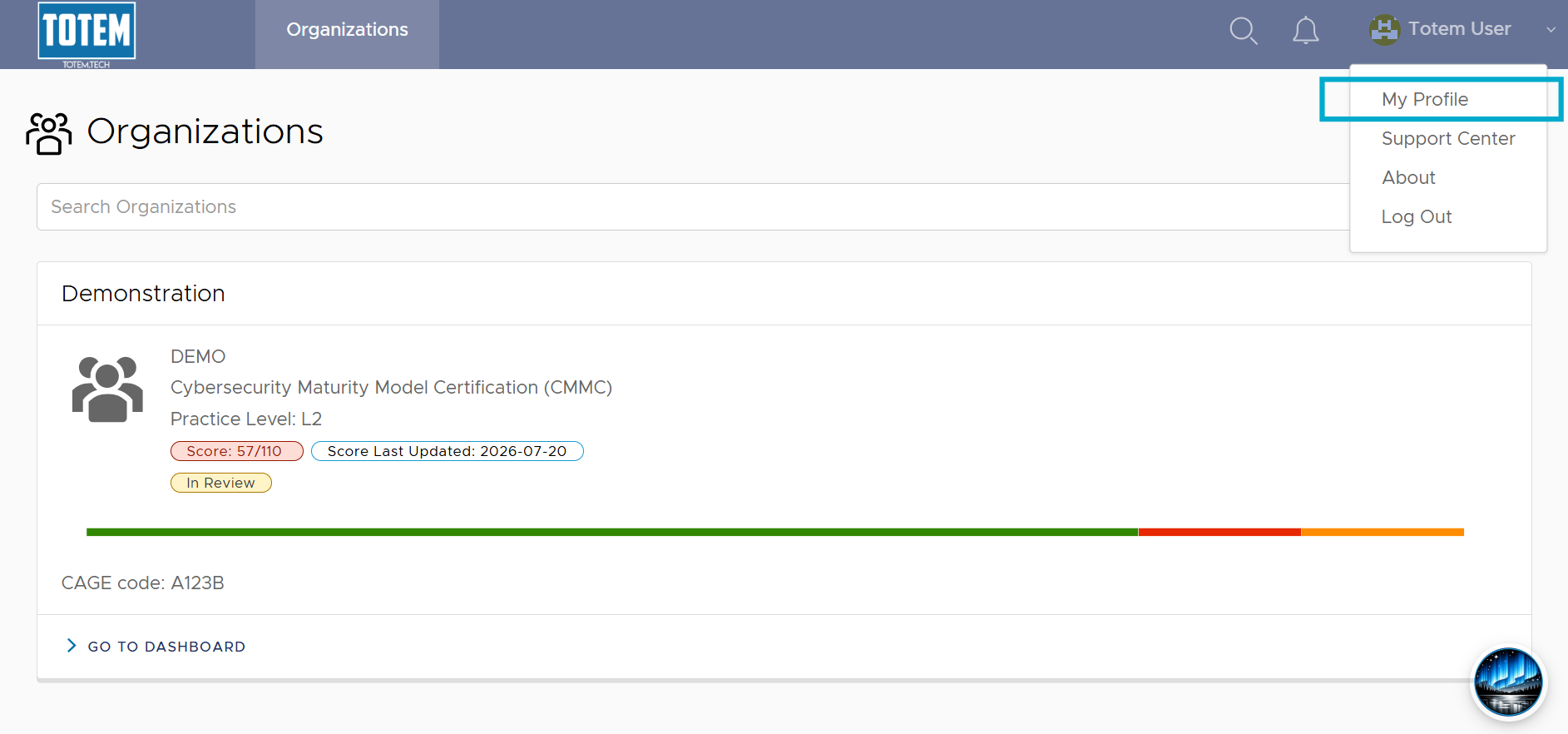
- Navigate to the upper right-hand menu and select My Profile.
- Scroll down to Passkeys and choose Add Passkey.
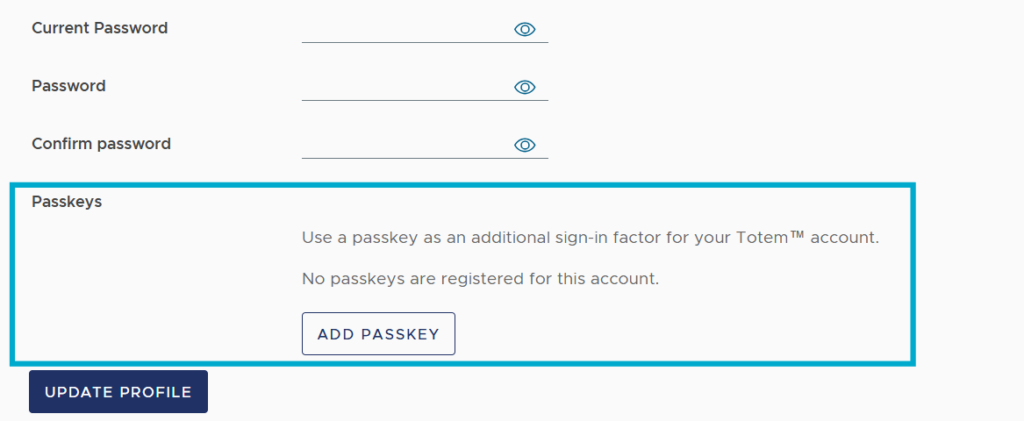
- Proceed through the passkey set up.
Important notes
You are required to set up MFA via an authenticator app before adding a passkey.