Updating organization details
Users with the Owner role may update their organization properties. This guide explains how to do this and elaborates on the various organization properties fields.
To update your organization details:
- Log in to Totem.
- Navigate to the Manage module. By default, you’ll arrive on the Properties page.
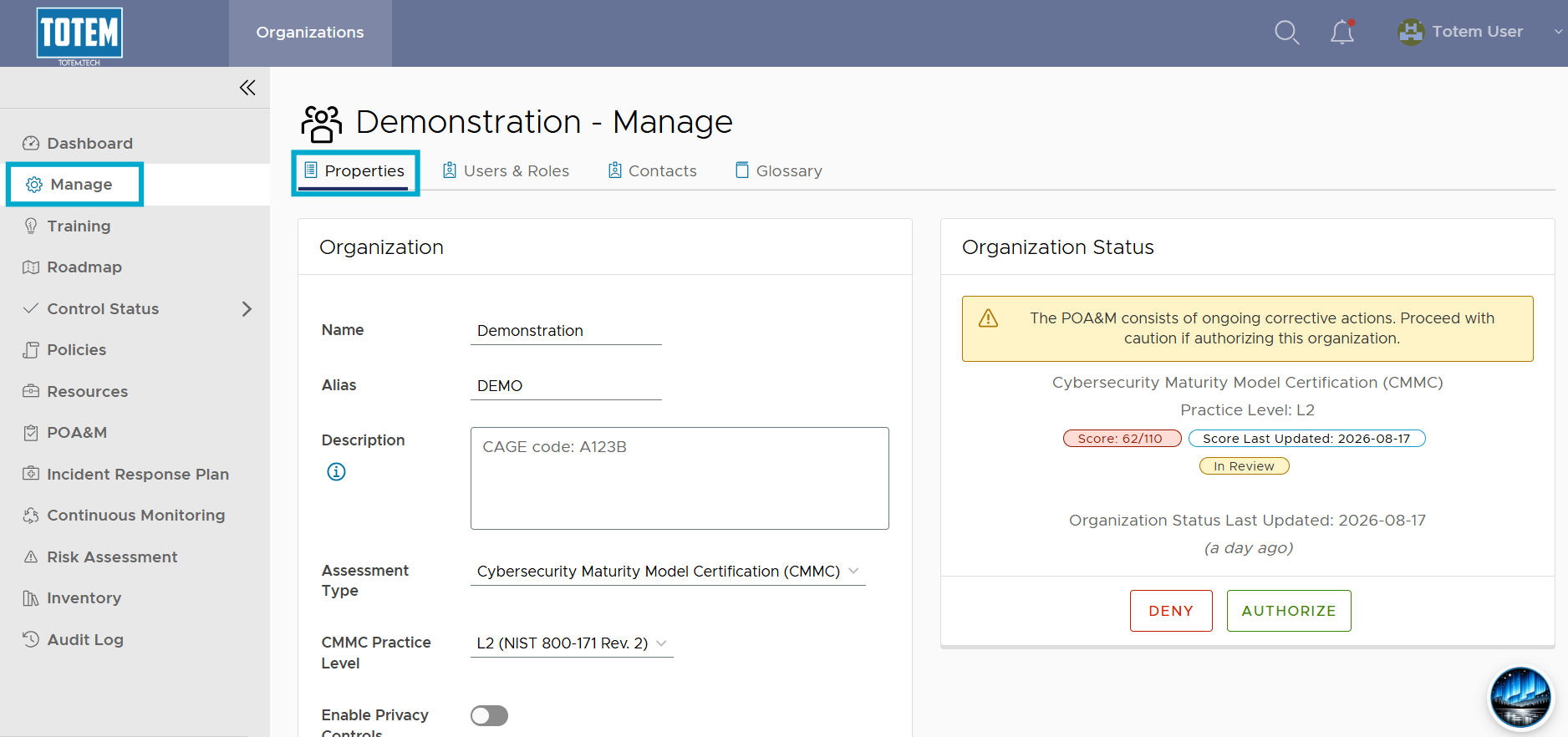
- Guidance on each field is listed below. Locate the field you are interested in updating to learn more:
- Name: The name of the organization or of the “covered” entity. For small- and medium-sized companies, this is simply the company itself. However, if this organization is really a subsidiary/segmented unit of a larger entity with multiple CAGE codes, list the name of the entity that is subject to cybersecurity compliance.
- Alias: A shortened version of the business/entity name. Used for simplified referencing of the organization throughout the System Security Plan (SSP). For example, an alias for Totem Technologies, LLC could be “TOTEM”.
- Description: Provide any relevant details about your organization that you choose, such as your company’s mission statement.
- Assessment Type: The cybersecurity compliance framework you’d like to view. Customers with an Enhanced or Engaged subscription may toggle between frameworks at any time. Customers with an Essentials subscription are limited to CMMC Level 1 only. Select your desired framework, then scroll to the bottom and choose Update Organization. Navigate to Control Status and see your control set has changed. At this time, Totem supports the following frameworks:
- CMMC (L1, L2 (NIST 800-171 rev. 2), L3)
- NIST 800-171 rev. 3
- ISO 27001:2022
- HIPAA 405d
- CMMC Practice Level: If your Assessment Type is CMMC, and you have either an Enhanced or Engaged subscription, you’ll have the option to toggle between CMMC levels. Choose your desired level, then scroll to the bottom and choose Update Organization. Navigate to Control Status and see the CMMC control set has updated.
- Enable Privacy Controls: Totem Technologies has created a control set specifically geared towards addressing privacy requirements. If you are required to demonstrate implementation of privacy controls, you can enable this control set. It will appear as a “Privacy” family the left-hand menu in whichever framework you currently have loaded.
- Executive Summary: Provide a brief summary of work being completed under the contract.
- Information Type: For federal contractors. Identify if you are handling both Federal Contract Information (FCI) and Controlled Unclassified Information (CUI) or just FCI.
- System Security Plan Name: The name of your SSP. For example, “TOTEM SSP”.
- System Security Plan Version: The current version of your SSP. For example, the date of last revision.
- System Name: The name of your covered system. For example, “TOTEM Covered Contractor Information System (CCIS)”
- Operational Status: Identify the current “status” of the organization’s SSP. In other words, is it currently being followed, is it still under development, or is it undergoing a revision?
- Environment: Describe generally the IT architecture of the organization, specifically concerning how it handles FCI and CUI. Does it isolate all FCI/CUI to the cloud? Does it limit to on-premises? Hybrid?
- Information Sharing: Describe how external entities connect to the covered system and, as a result, how information is disseminated outside of the organization. Does the organization support remote access such as corporate VPN, RDP, or Wi-Fi? What cloud services are used for handling FCI/CUI?
- Security Categorization: These fields are determined by performing an assessment in accordance with FIPS 199. In other words, if the organization experienced a security incident, what is the impact or degree of harm on the DoW, customer, or general public that results?
- DUNS/UEI: The unique nine-digit code that identifies your business.
- CAGE code: The unique five-character code that identifies your federal contracting business.
- AI Rollback Window: All subscription tiers gain access to Aurora, our AI compliance assistant. Aurora can make certain changes for you, such as updating control statuses or implementation details text. Any changes made by Aurora can be rolled back, but only for the defined period in the AI Rollback Window. For instance, the default window is 30 days, meaning changes made by Aurora can be reverted within 30 days of the change.
- Shared Responsibility Matrices: If your Totem administrator has made any SRMs available to you, you can select or remove these here. These will then populate within the Shared Responsibilities fields in the Control Status module.
- Be sure to select Update Organization after making any changes to your organization details.
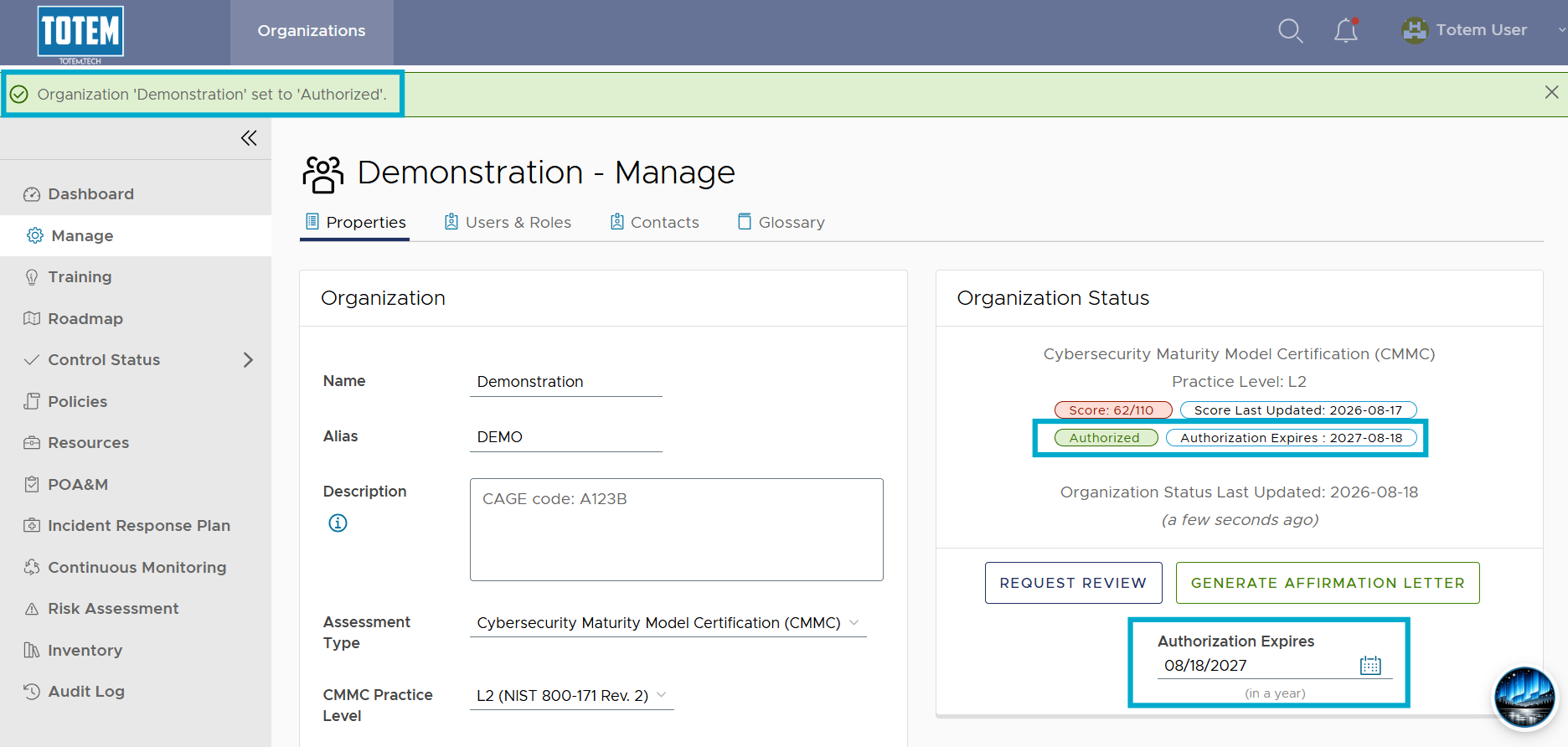
- Within the Organization Status section, Organization Owners and Authorization Officials may authorize their organization’s SSP. In other words, they place their stamp of approval on the SSP, saying it is complete and accurate.
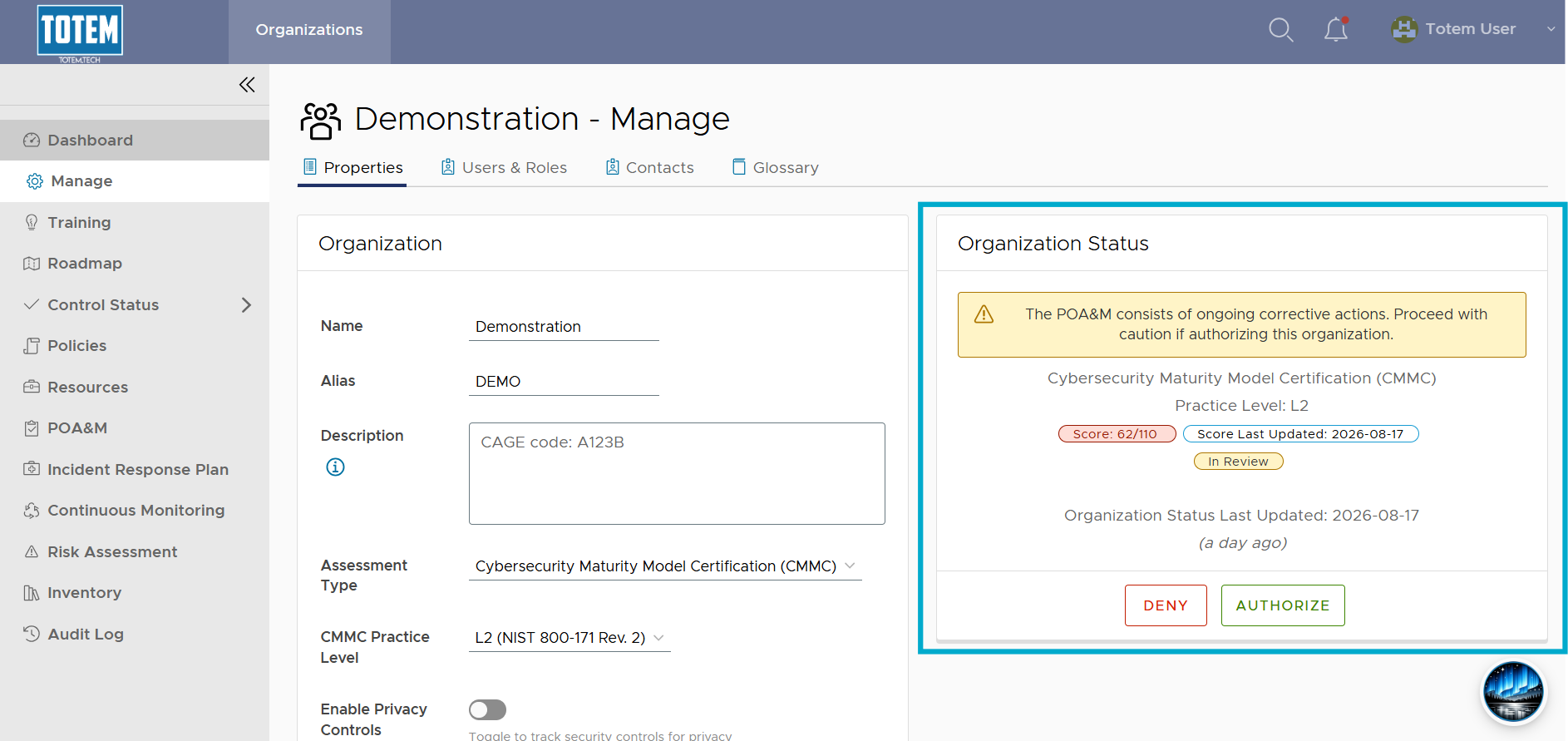
- To authorize an organization, select the Authorize field.
- Totem has additional logic built-in to help ensure you are truly ready to authorize your SSP. If you attempt to authorize your SSP, you may be met with the following error message:
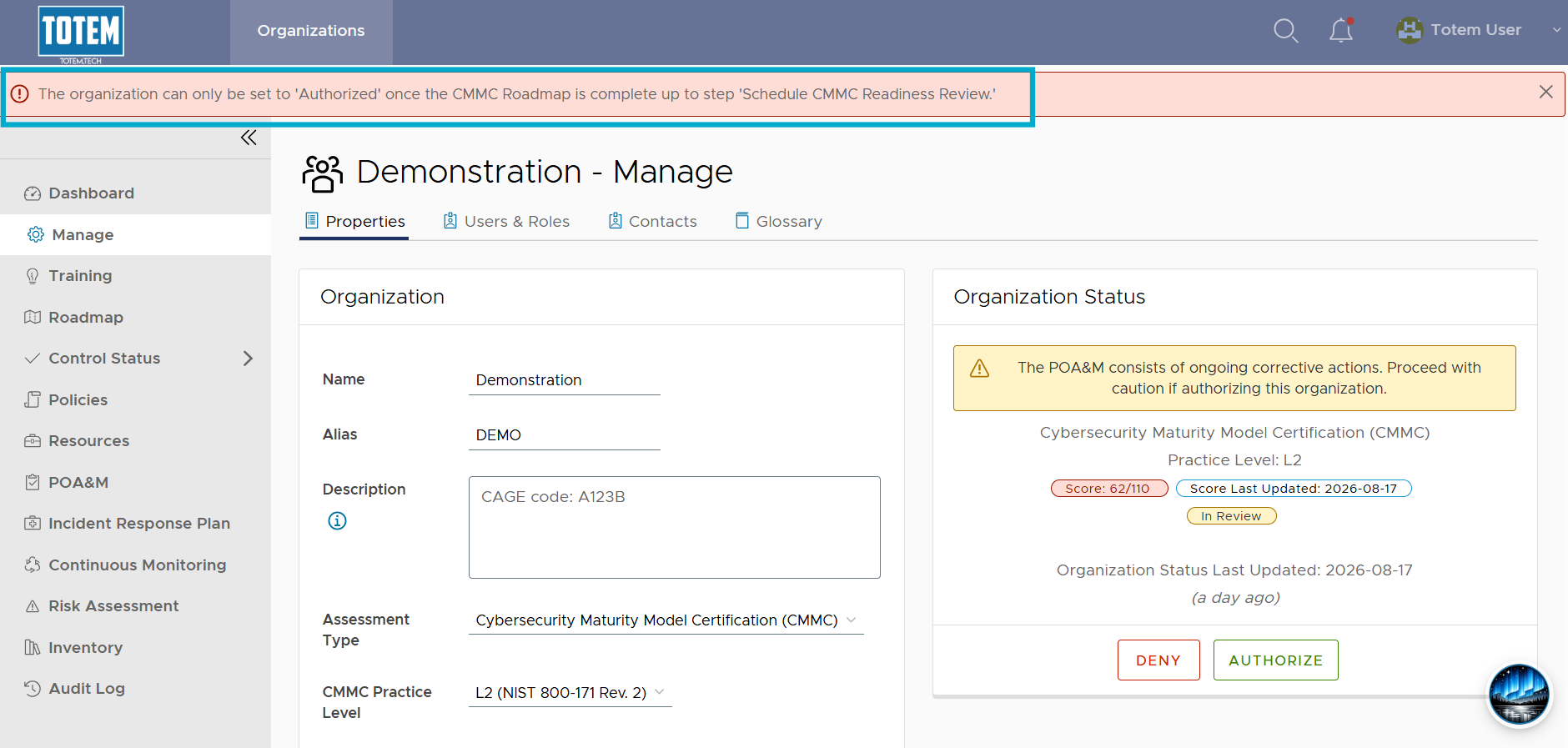
- As it states, there are additional steps that must be completed first. Navigate to the Roadmap module and ensure you’ve completed ALL steps leading up to the Schedule CMMC Readiness Review step.
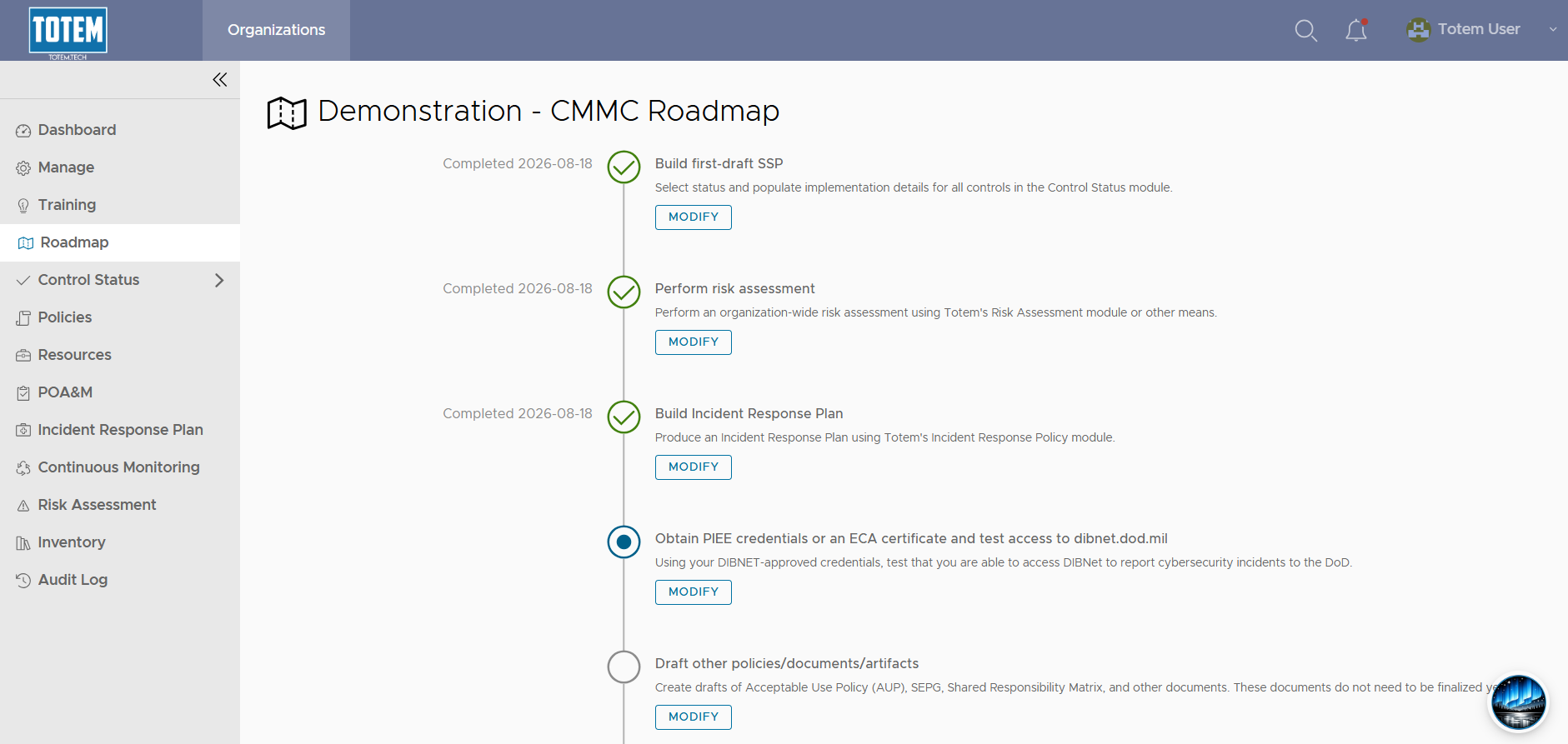

- Once you’ve done so, you’ll be able to authorize the organization’s SSP. The authorization will last for one year. Ensure that you have a task on your Continuous Monitoring plan (use our “System Security Plan” Continuous Monitoring task template!) to re-authorize your SSP on an annual basis.