
Create your Totem user account
Users receive invitations to Totem via email, which contain a unique URL for creating your account and accessing your Totem organization. This guide walks you through setting up your Totem user account and logging in for the first time.
- An existing Totem user, such as your Totem instance administrator or your organization Owner, sends you an invitation via email.
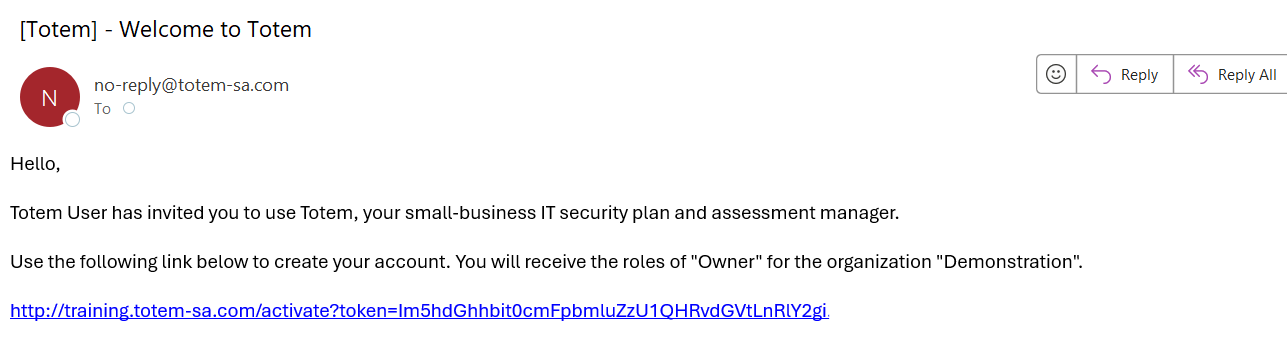
- You will receive a Welcome to Totem email from a no-reply@totem-sa.com email address similar to the following:
- If you did not receive the Totem invitation email when you believe you should have, please refer to our Totem email invitation guide.
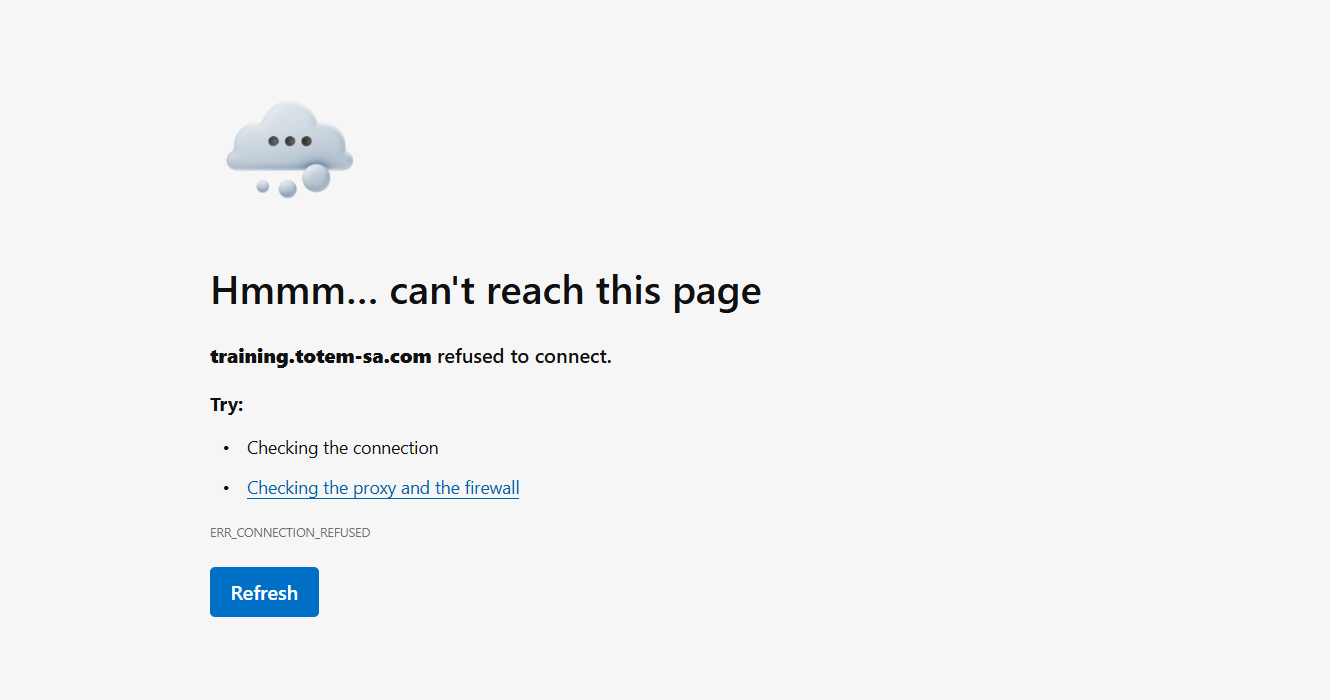
- Select the URL in the email. This will open a browser window with the account creation form.
- NOTE: Some web browsers may not automatically enforce HTTPS, which may result in you getting a “refusal to connect” error when selecting the URL. If this happens, simply add an “s” after the “http” in the URL (e.g., https://) and try again.
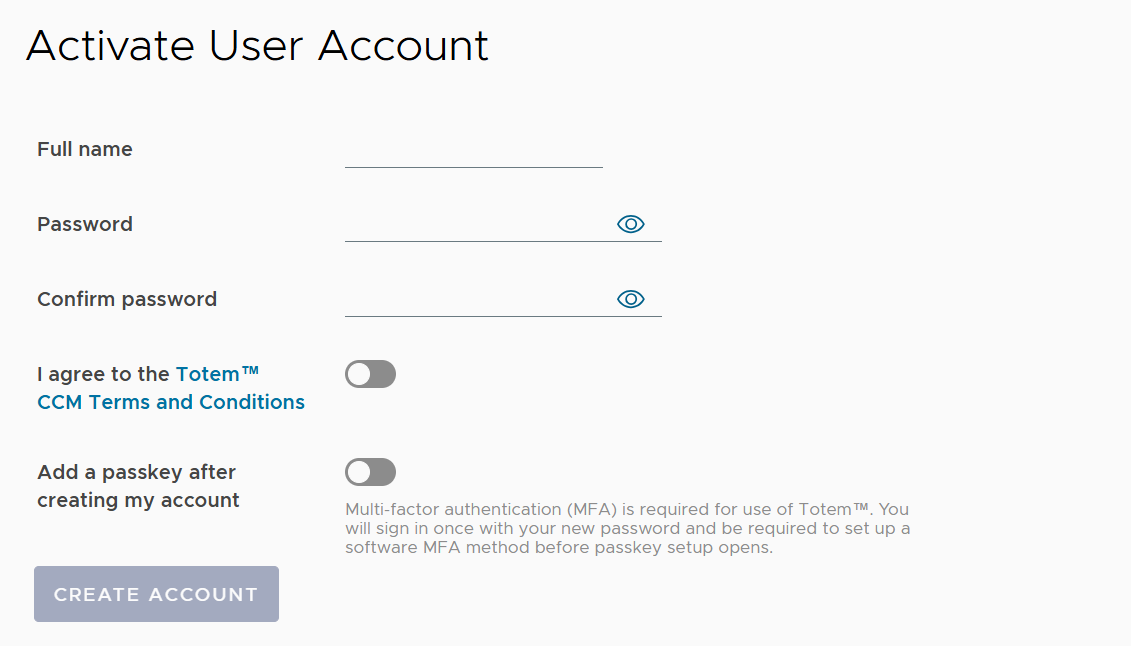
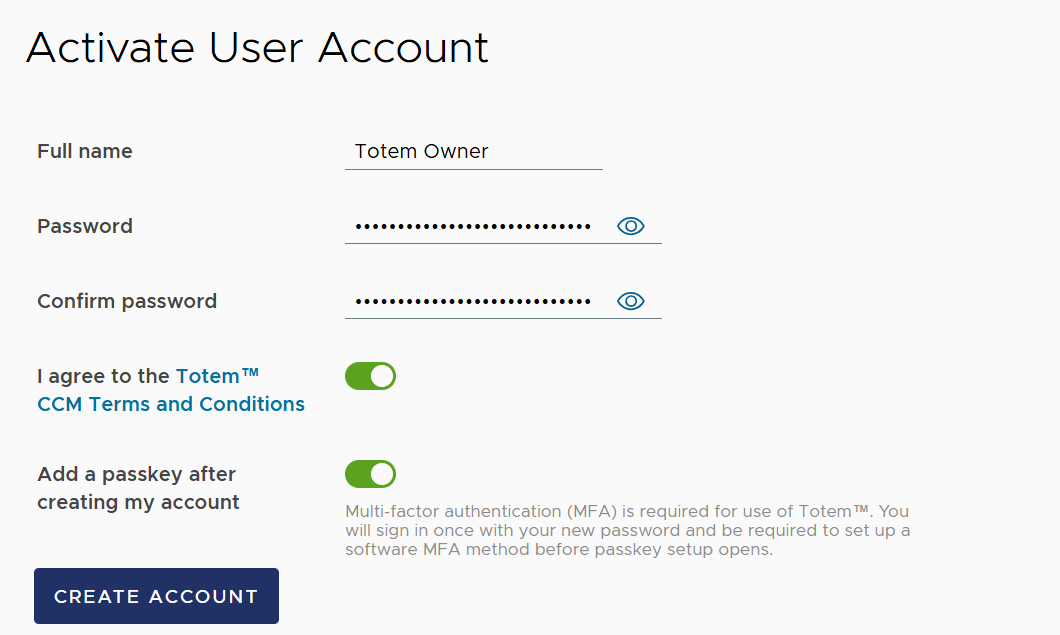
- Fill out the account creation form. Totem Technologies highly recommends using a trusted password manager for storing credentials, MFA tokens, and passkeys.
- Totem gives you the option to set up a passkey. This is optional, and you can decide whether or not to add a passkey here. You’ll be prompted to set up the passkey later, after you’ve finished creating your account and set up MFA. Even if you leave the passkey option untoggled here, you’ll be asked again later if you want to set one up, and you can always do it later via your profile.
- Once you’ve finished, select Create Account.
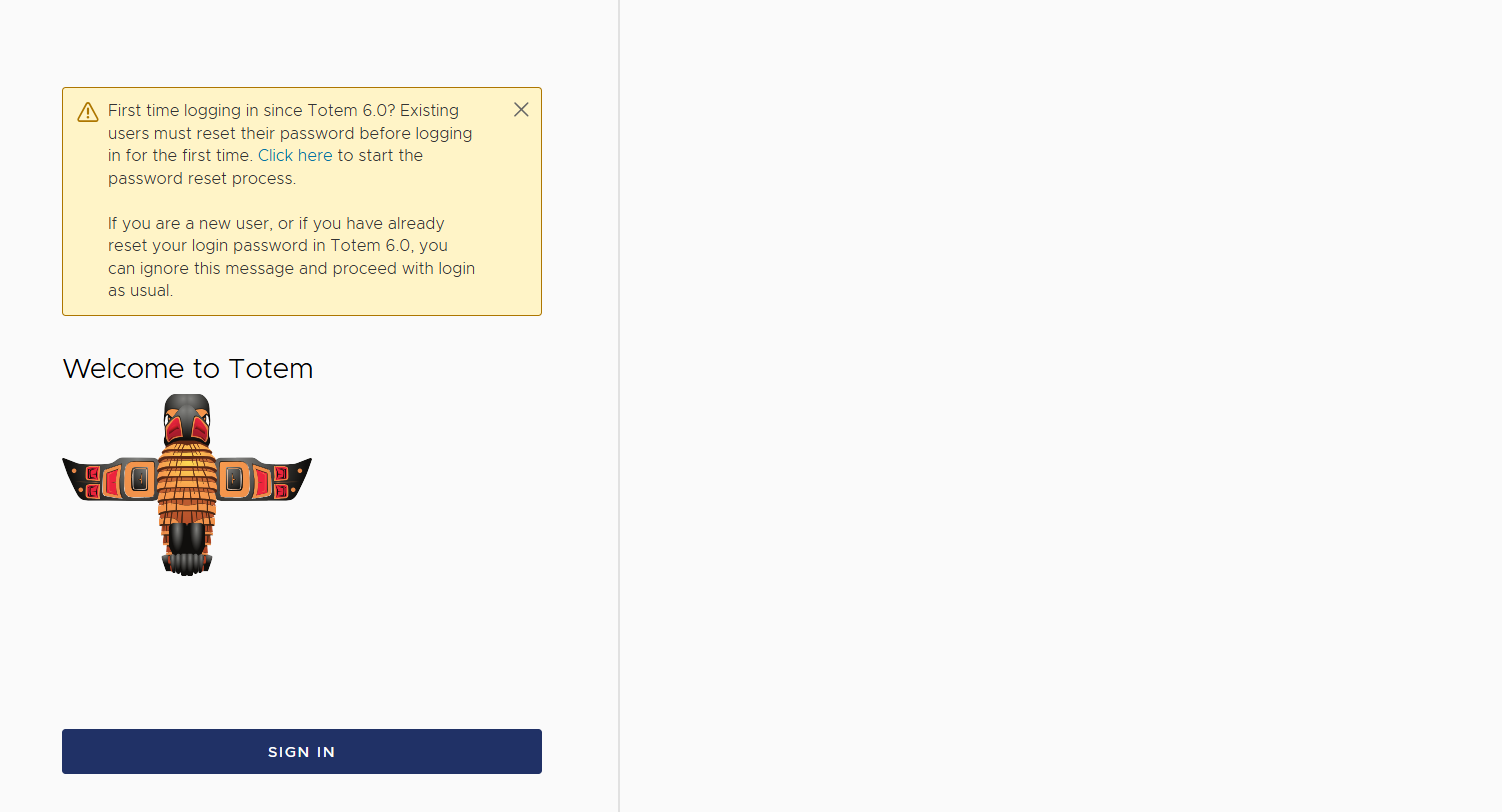
- Once your account has been created, you’ll be redirected to the Welcome to Totem page. Choose Sign In.
- NOTE: As seen in the screenshot below, you’ll be presented with a “you must change your password” message. First-time users can ignore this message. This is only applicable for existing users that have not yet changed their password since our version 6.0 release.
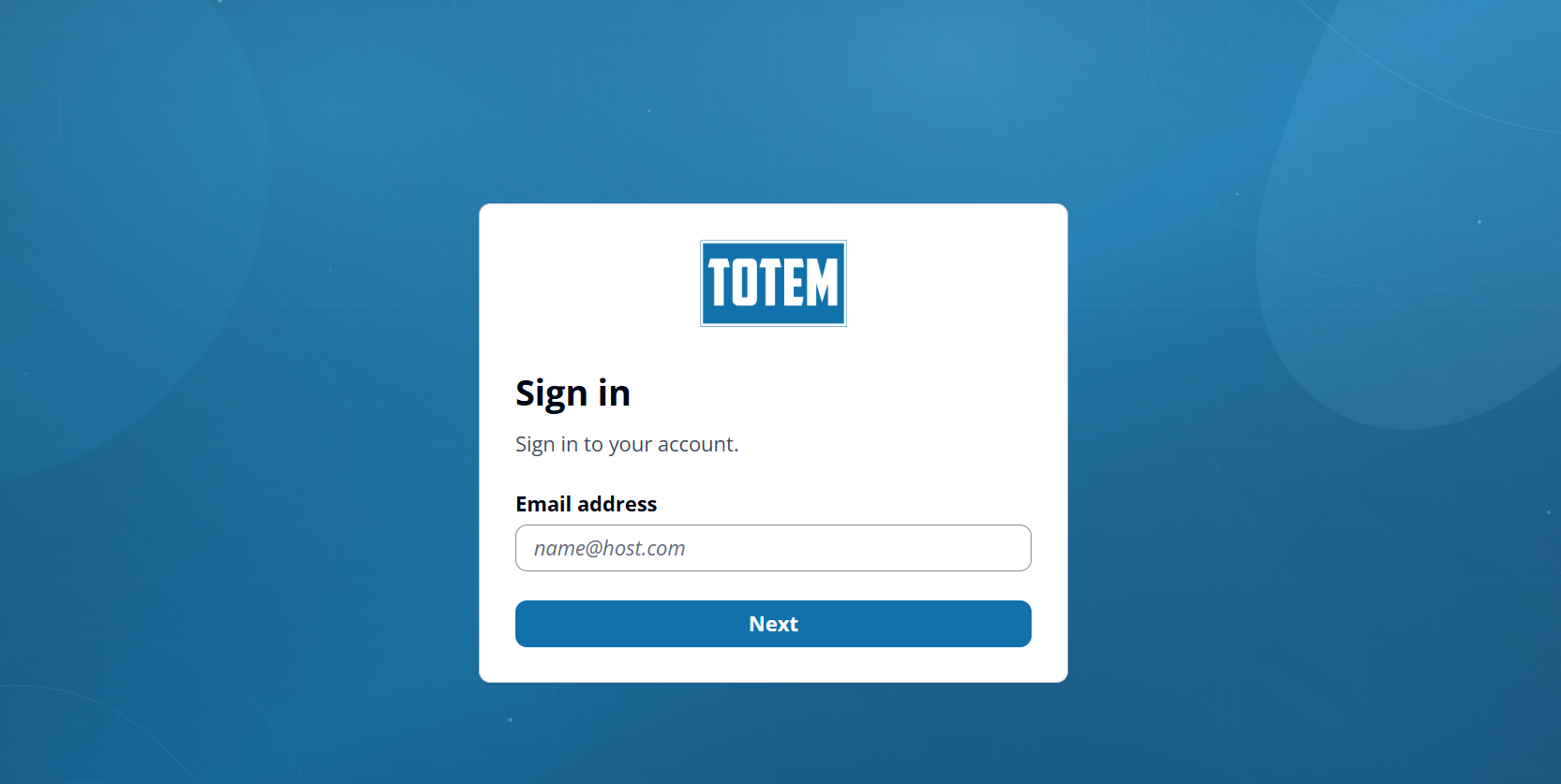
- Enter your email address.
- NOTE: This field is case-sensitive. If you enter your email and are immediately redirected to select a passkey, the email you’ve entered does not correspond with an existing Totem account. Please refer to our common login issues guide for more.
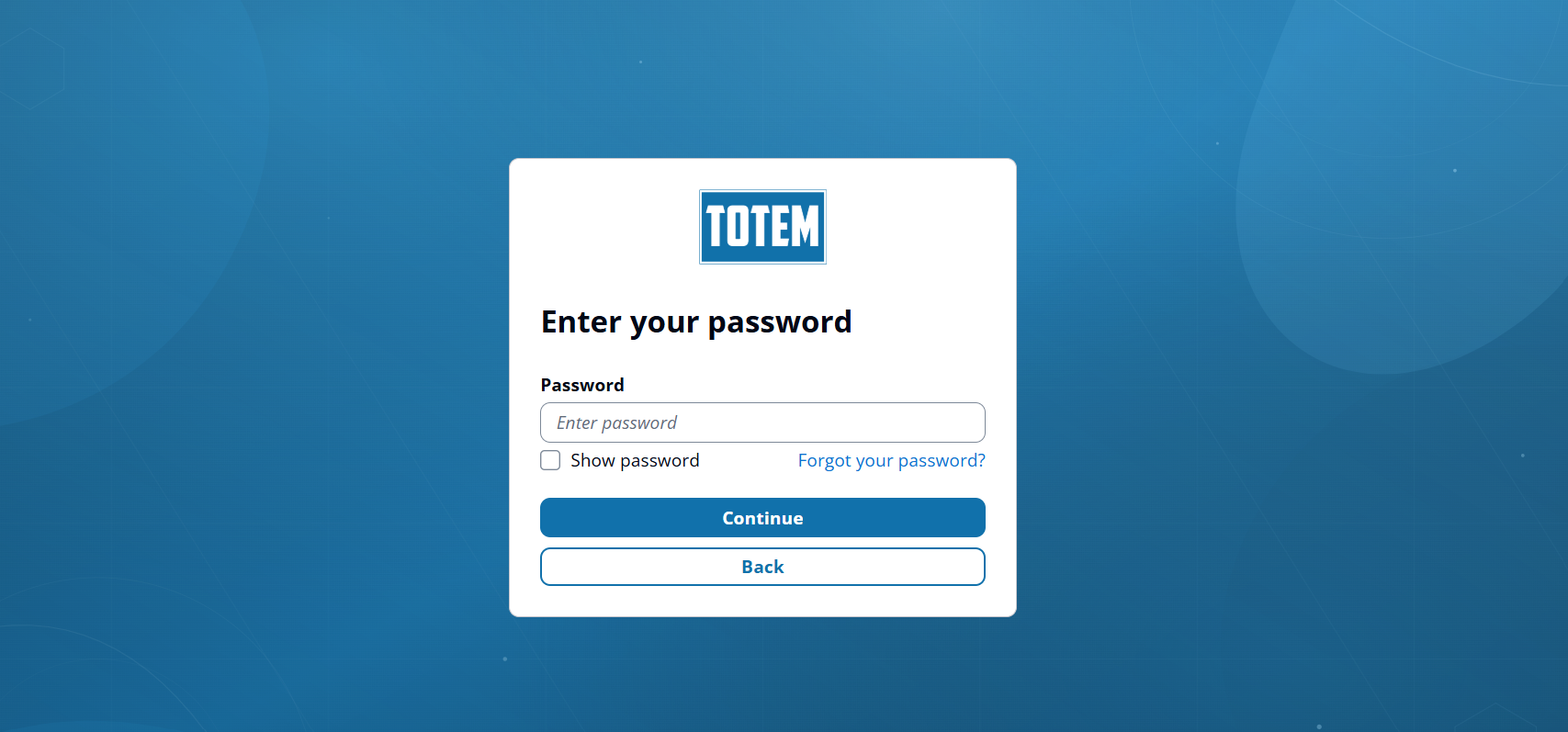
- Enter your password.
- NOTE: If your password is not accepted, or you’ve forgotten your password, or you have attempted to reset your password and have not received the email with the code, please refer to our common login issues guide for more.
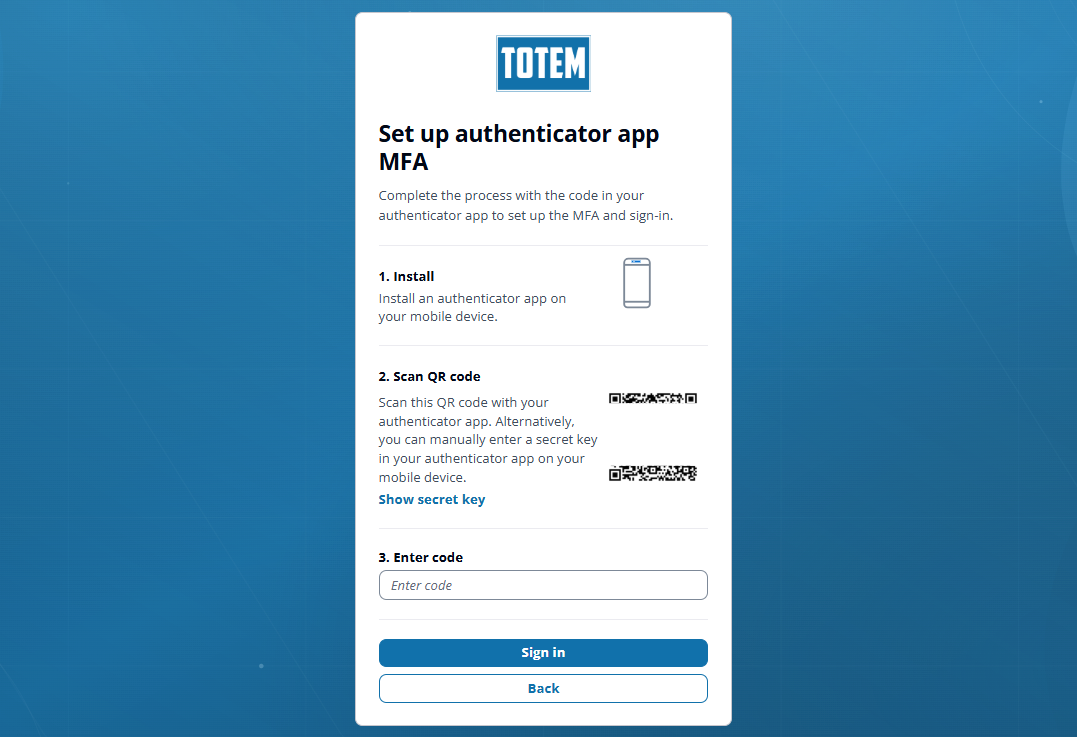
- You’ll then be presented with the MFA token setup. Scan the QR code via your MFA authenticator app and apply the code to the field, and choose Sign in. Refer to our guide on setting up MFA for more. Totem Technologies highly recommends storing these tokens in a trusted password manager.
- You’ll again be given the option to set up a passkey. If you want to add a passkey (highly recommended), choose Add passkey. If not, choose Not now. Adding a passkey will allow you to sign in later with only your Email + Passkey; no need for Email, Password, and MFA token.
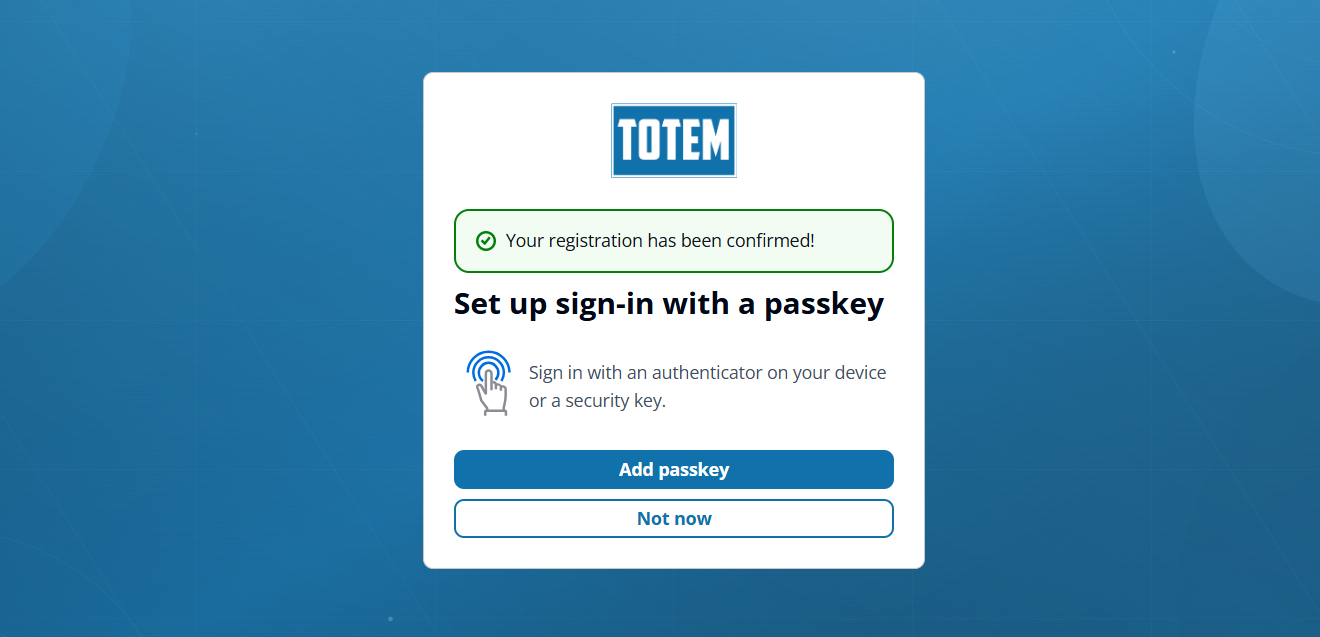
- If adding a passkey, save to your desired location. Totem Technologies highly recommends storing these passkeys in a trusted password manager for ease of use.
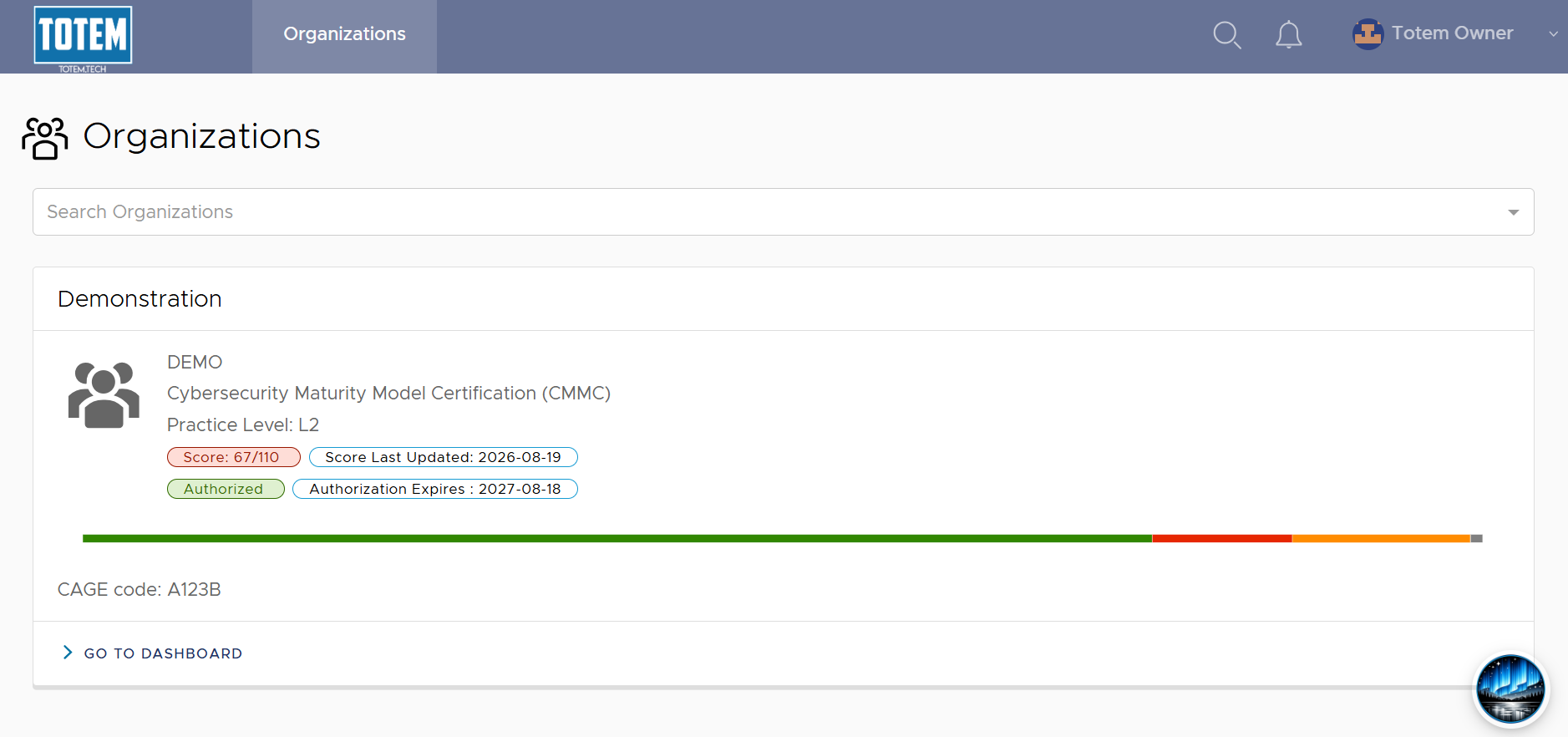
- Once you’ve added a passkey (or declined adding one), you’ll immediately be logged in to Totem.
- If you experience any issues with logging in, please refer to our common login issues guide for help. If you’re still stuck, please contact your Totem administrator or contact support.