
Performing a find and replace
Totem contains a find and replace tool that you can use to quickly search through and update text fields within the Control Status module. This saves you significant time going through each individual text field.
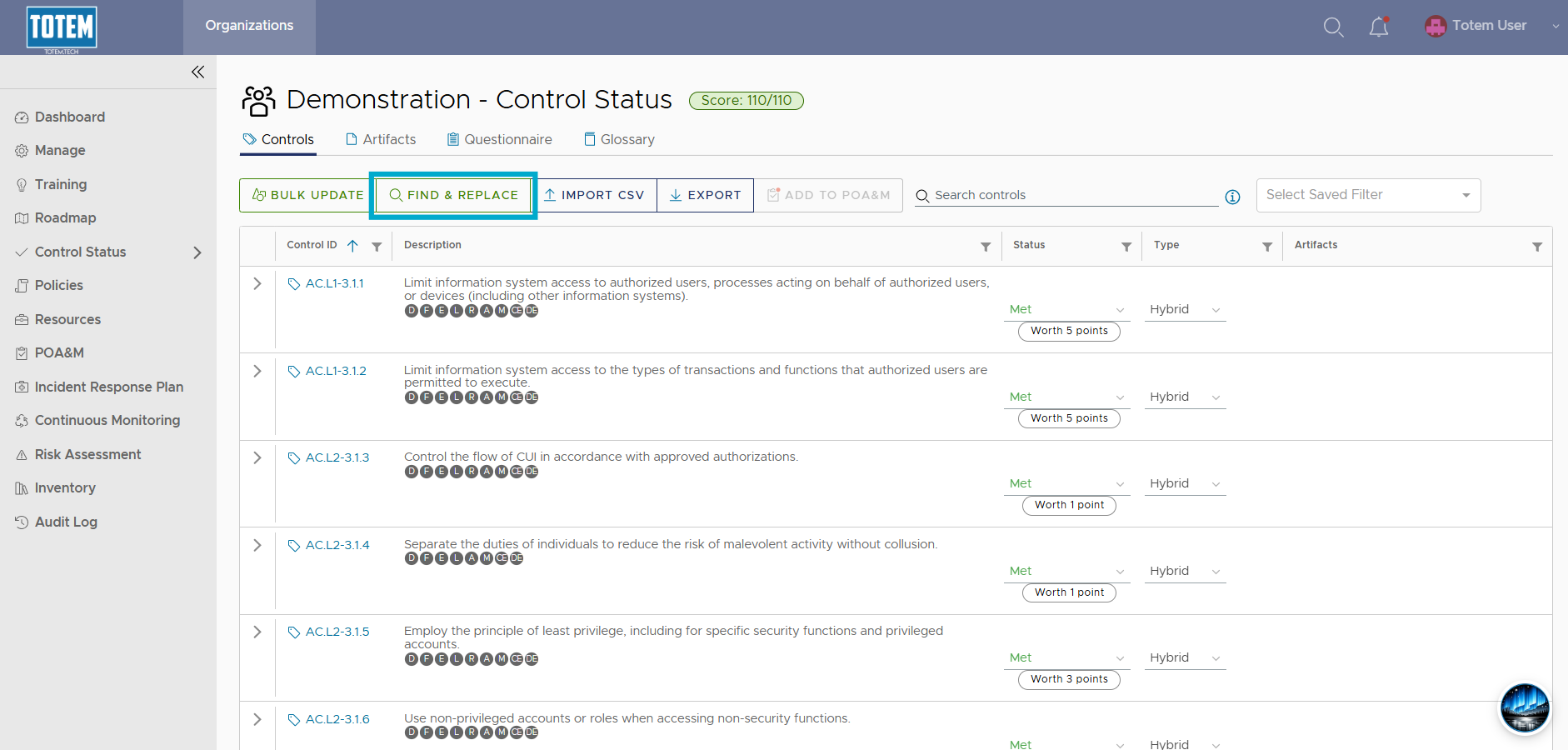
This tool allows you to update text within the following Control Status fields:
- Implementation Details
- Comments
- Shared Responsibilities
To get started, select the Find & Replace button at the top of the Control Status page. This will bring up the tool:
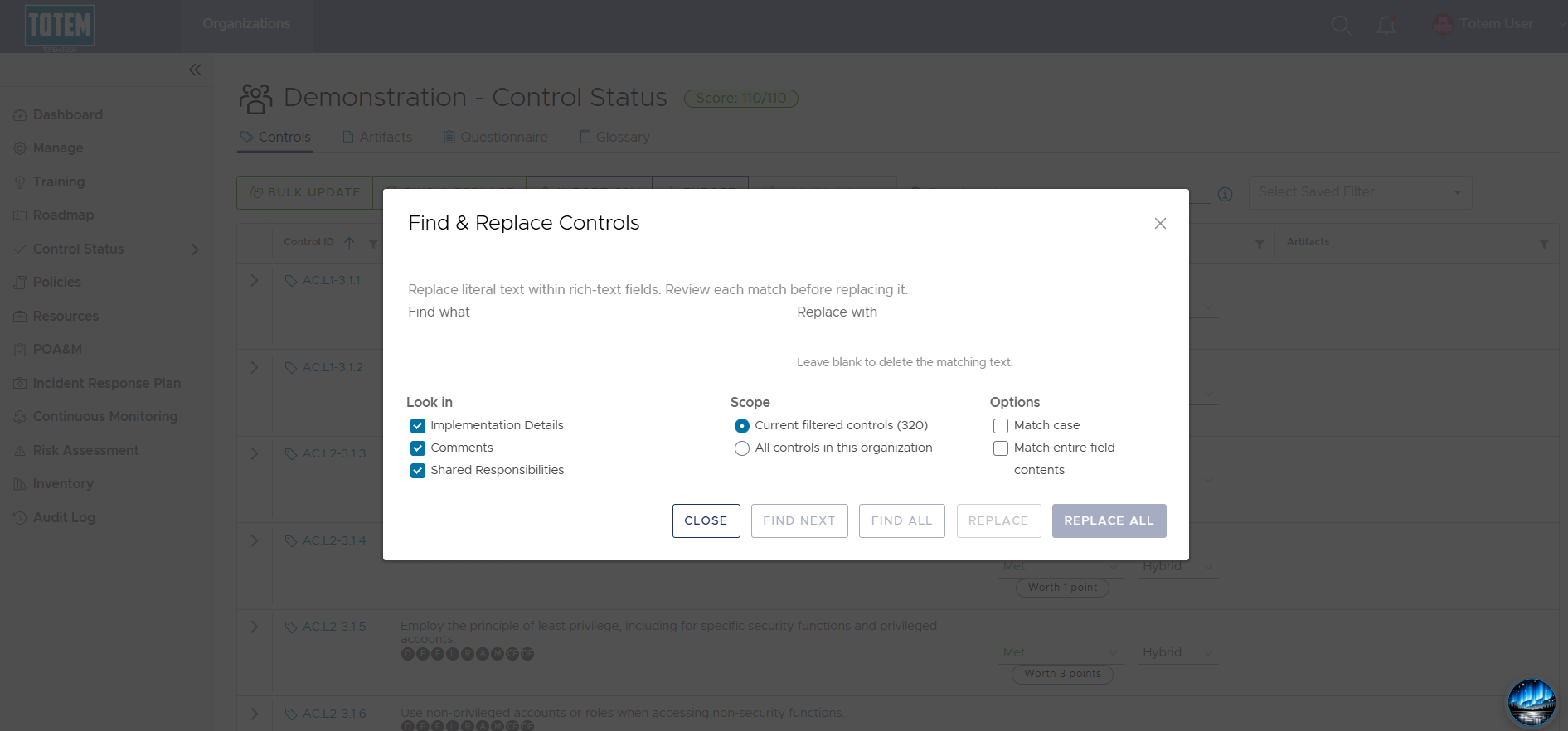
Enter your search term in the Find what field, followed by the text you’d like to replace your term. Select which text fields you’d like to search through for matching terms.
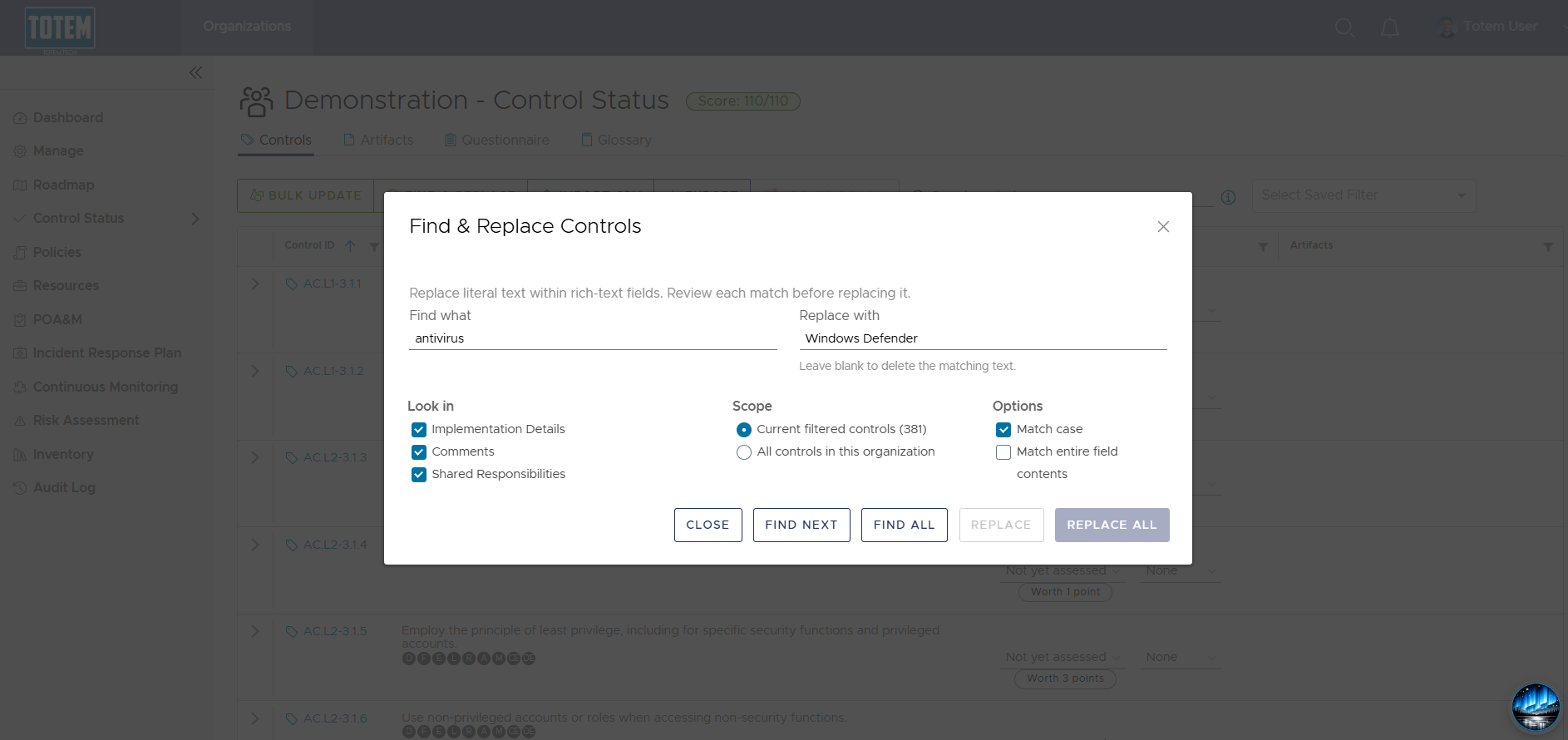
Select either Find Next to find the first match, or Find All to list all matches.
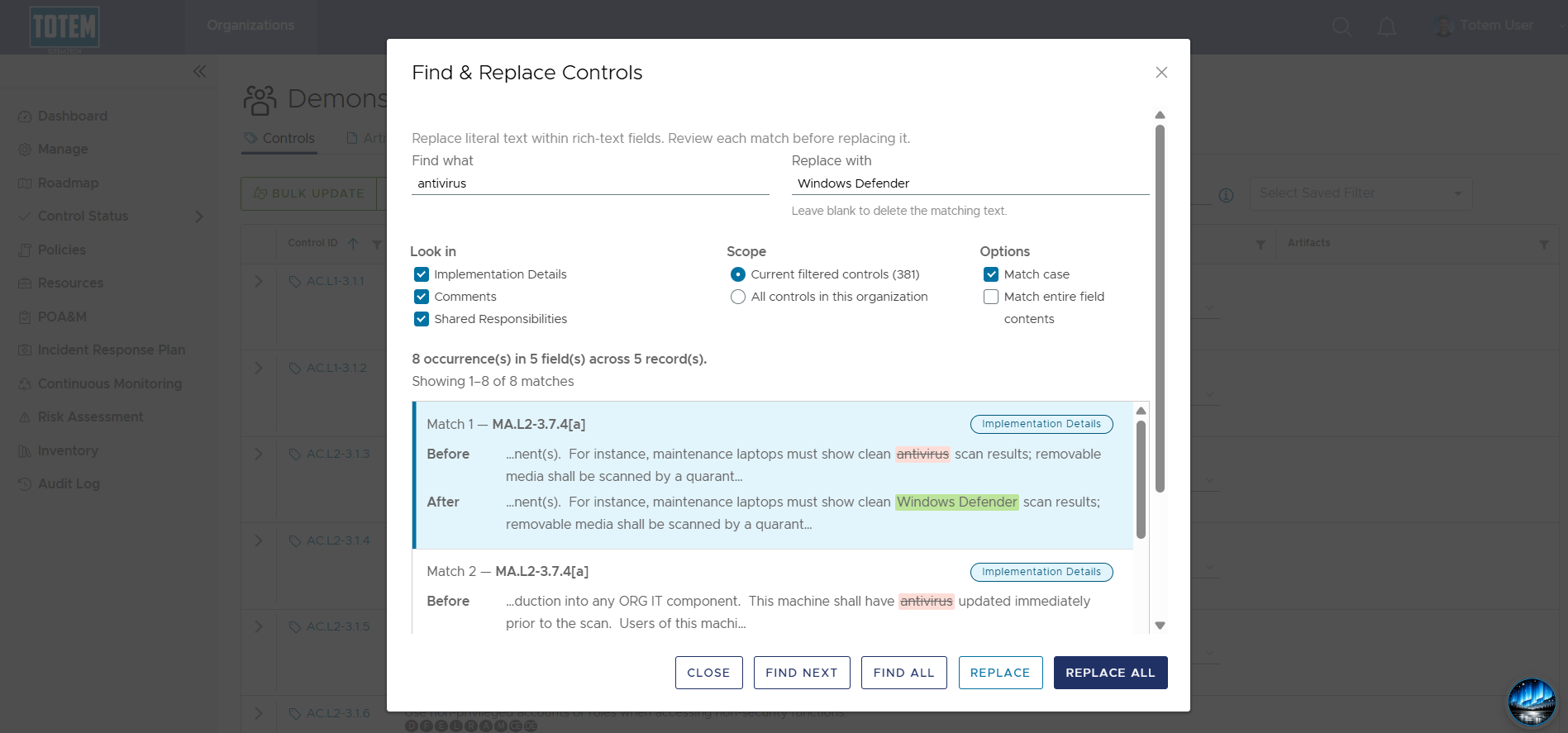
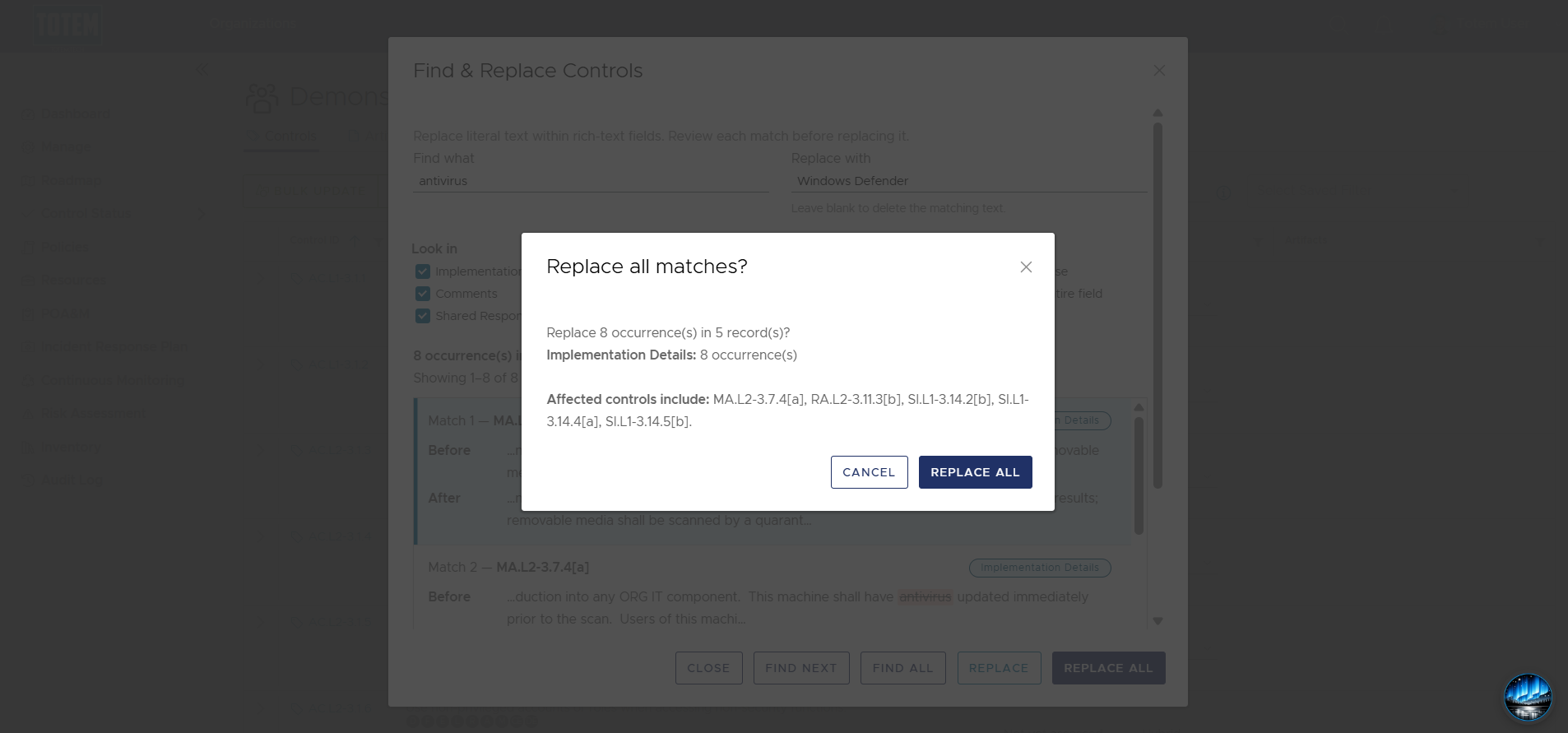
If you want to perform a replacement, choose either Replace to replace the first match, or Replace All to replace all matches. Verify the expected changes, then confirm to complete the find and replace.
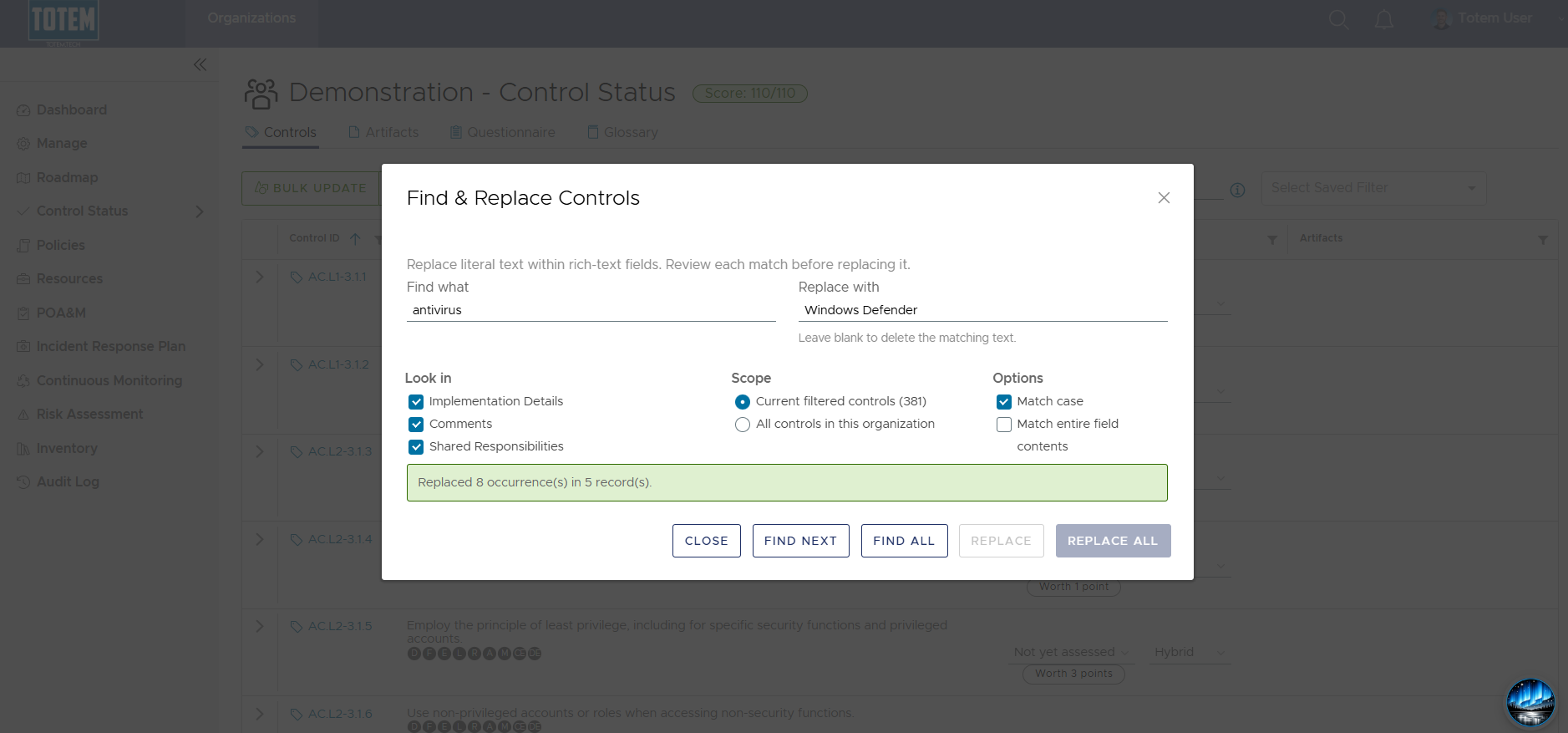
Observe that the matched text has now been replaced by the new text.
If you made a mistake when performing a find and replace and need to undo the change, contact your Totem administrator. Administrators can undo find and replace actions via the Audit Log.